AI Image Editing Tutorial: Make Your First Edit with Pitovee AI
Learn how to edit an image in Pitovee AI, upload your reference, write a focused prompt, check output settings, and review changes before saving your result.
You have a photo you like, but one detail feels wrong. Maybe the background is distracting, or the setting doesn't suit the project. This AI image editing tutorial walks you through planning a focused edit in Pitovee AI, writing the instruction, and checking what actually changed.
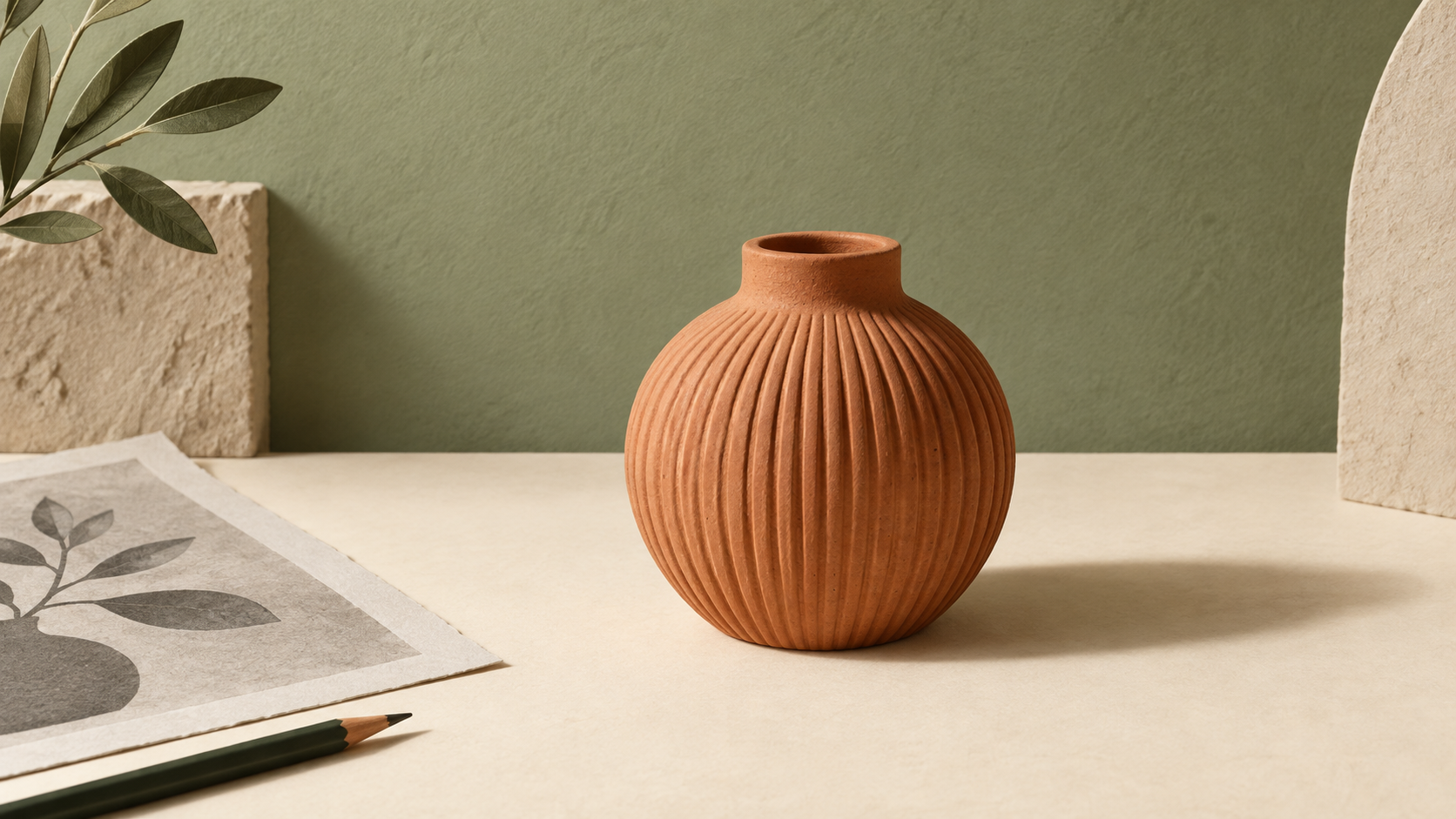
We'll use a simple example: a terracotta vase photographed against pale gray. The goal is to change the background to sage green while keeping the vase recognizable. You'll need your source image, a clear idea of the change, and access to your account.
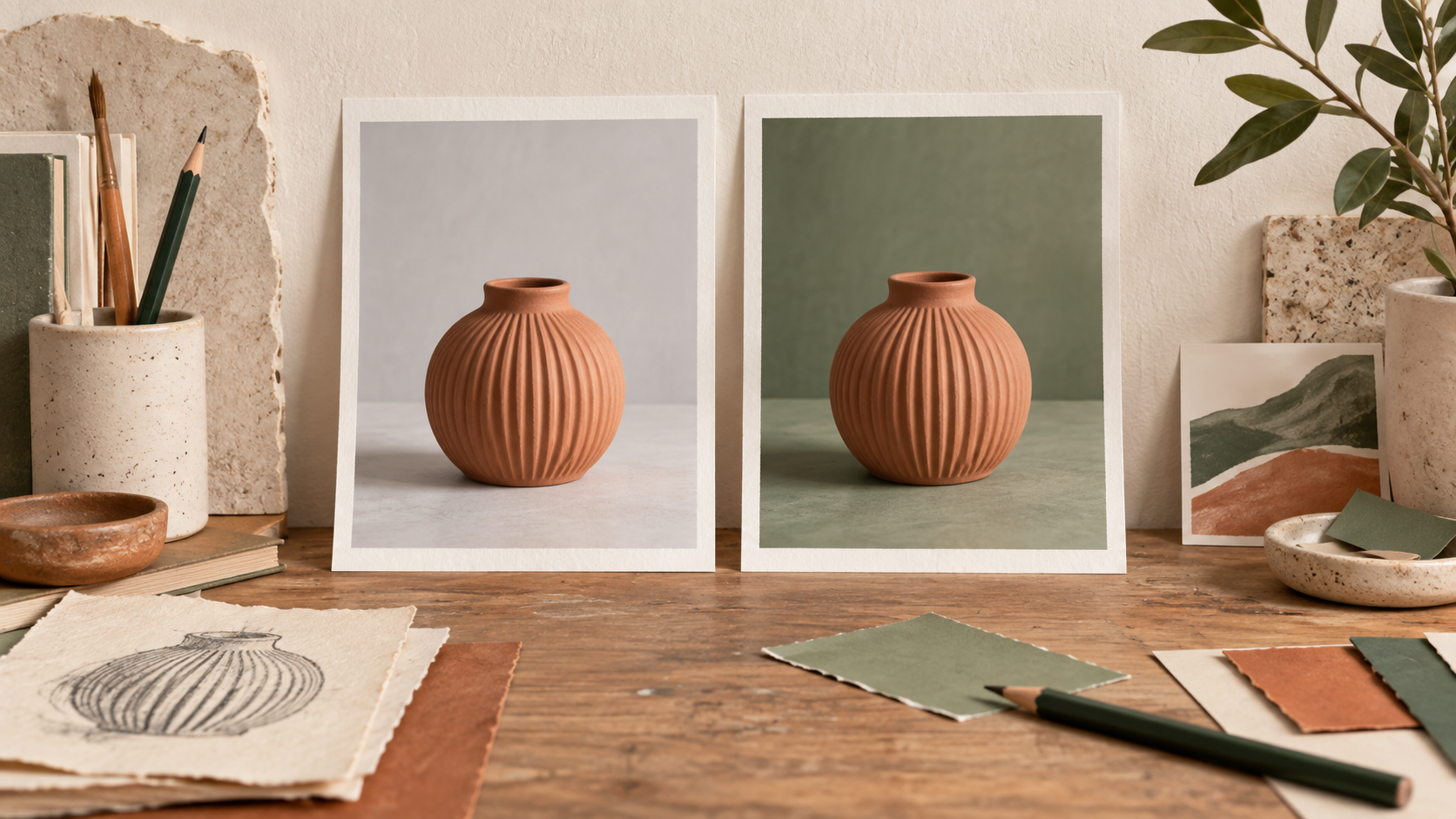
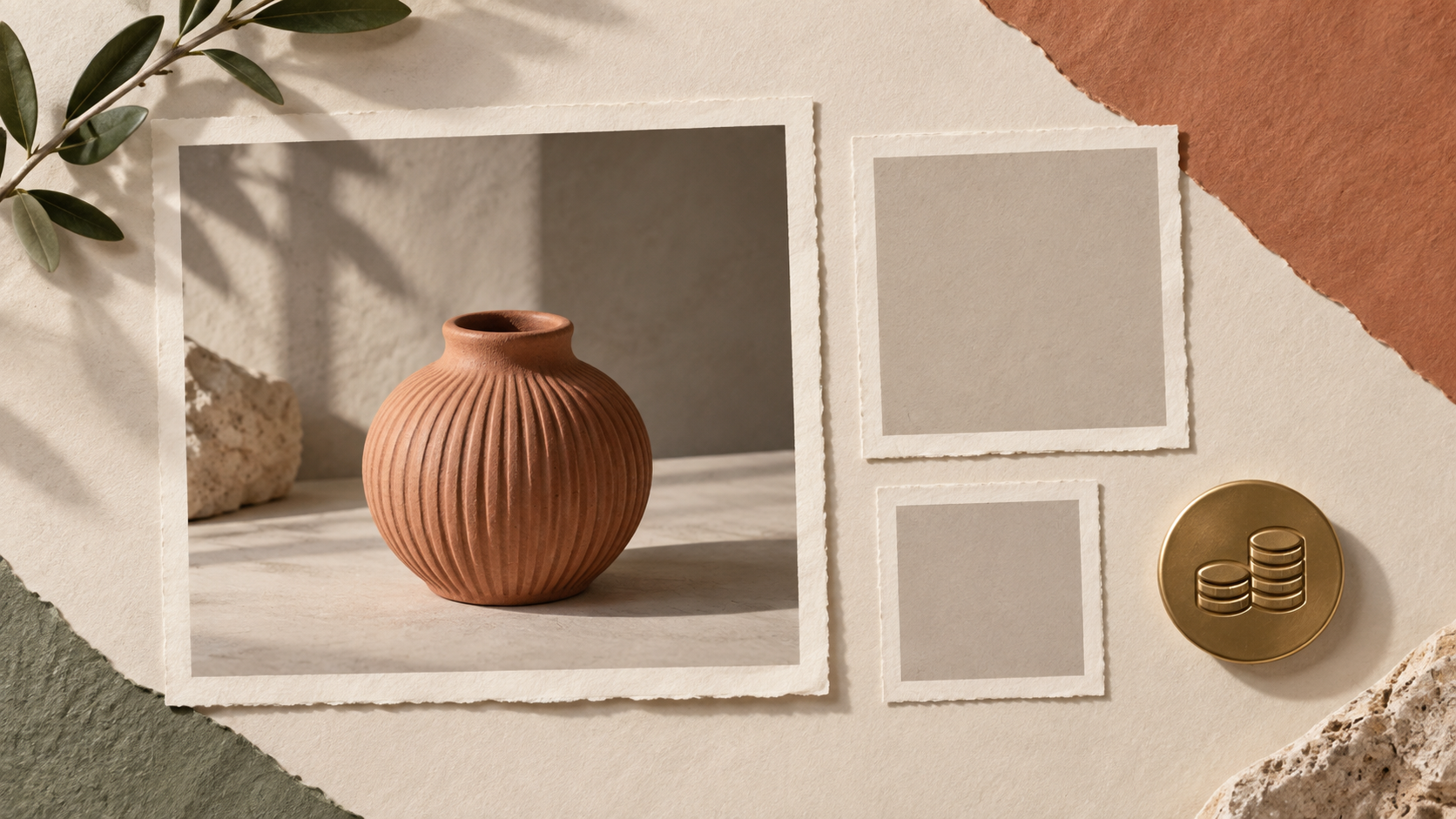
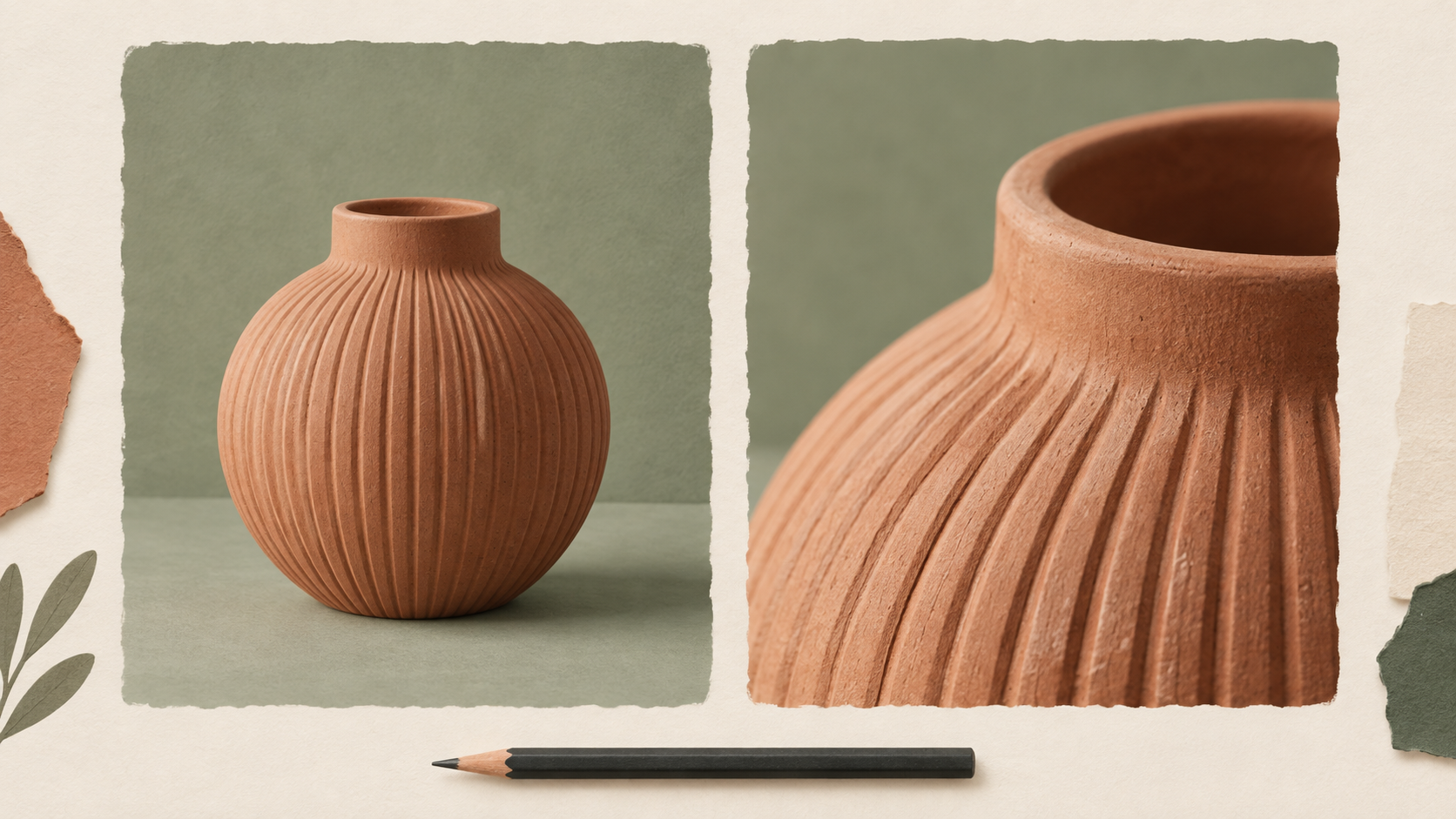
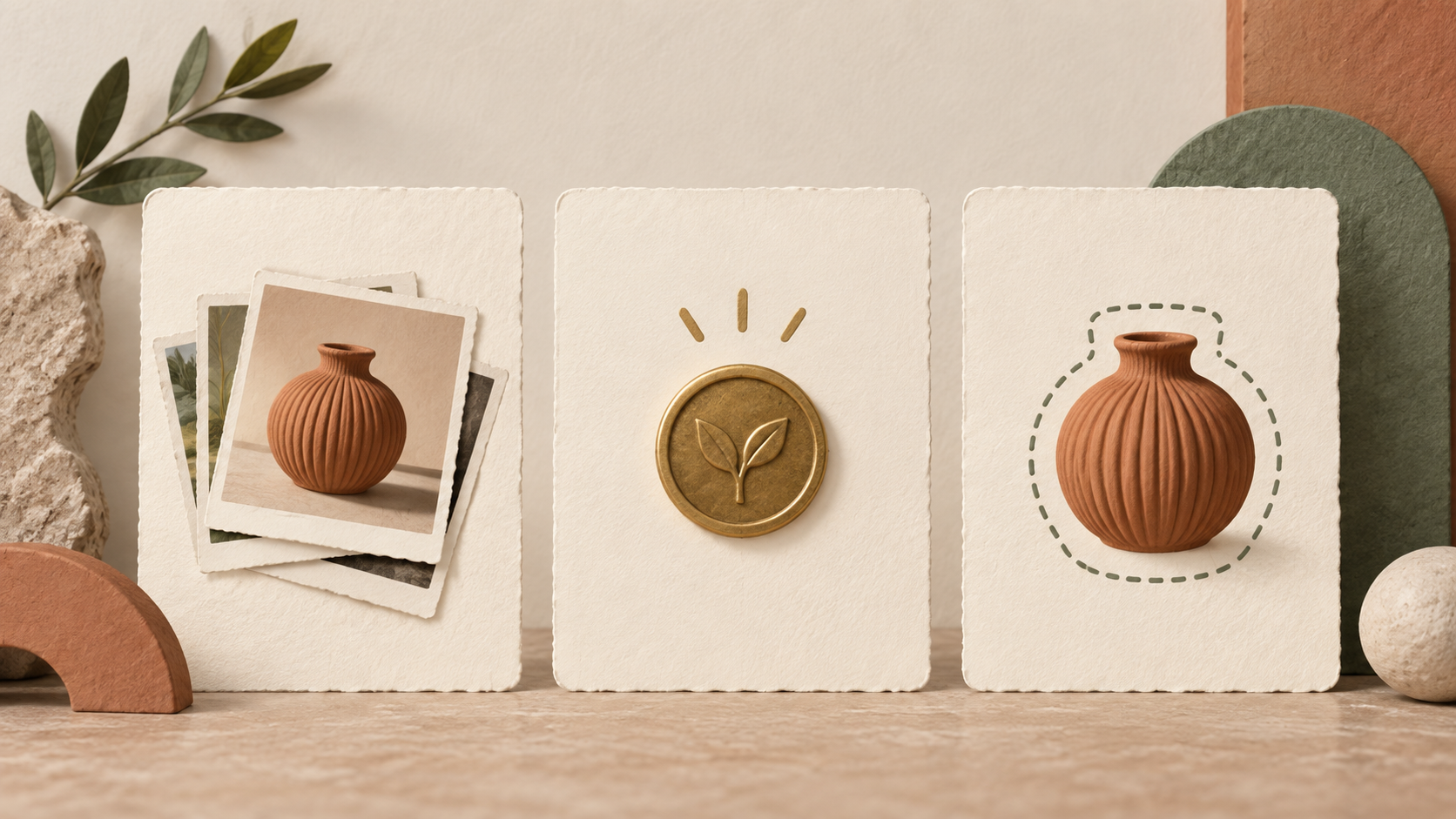
The illustrations explain the editing workflow; they are not actual Pitovee AI results.
1. Start with a clear image and one editing goal
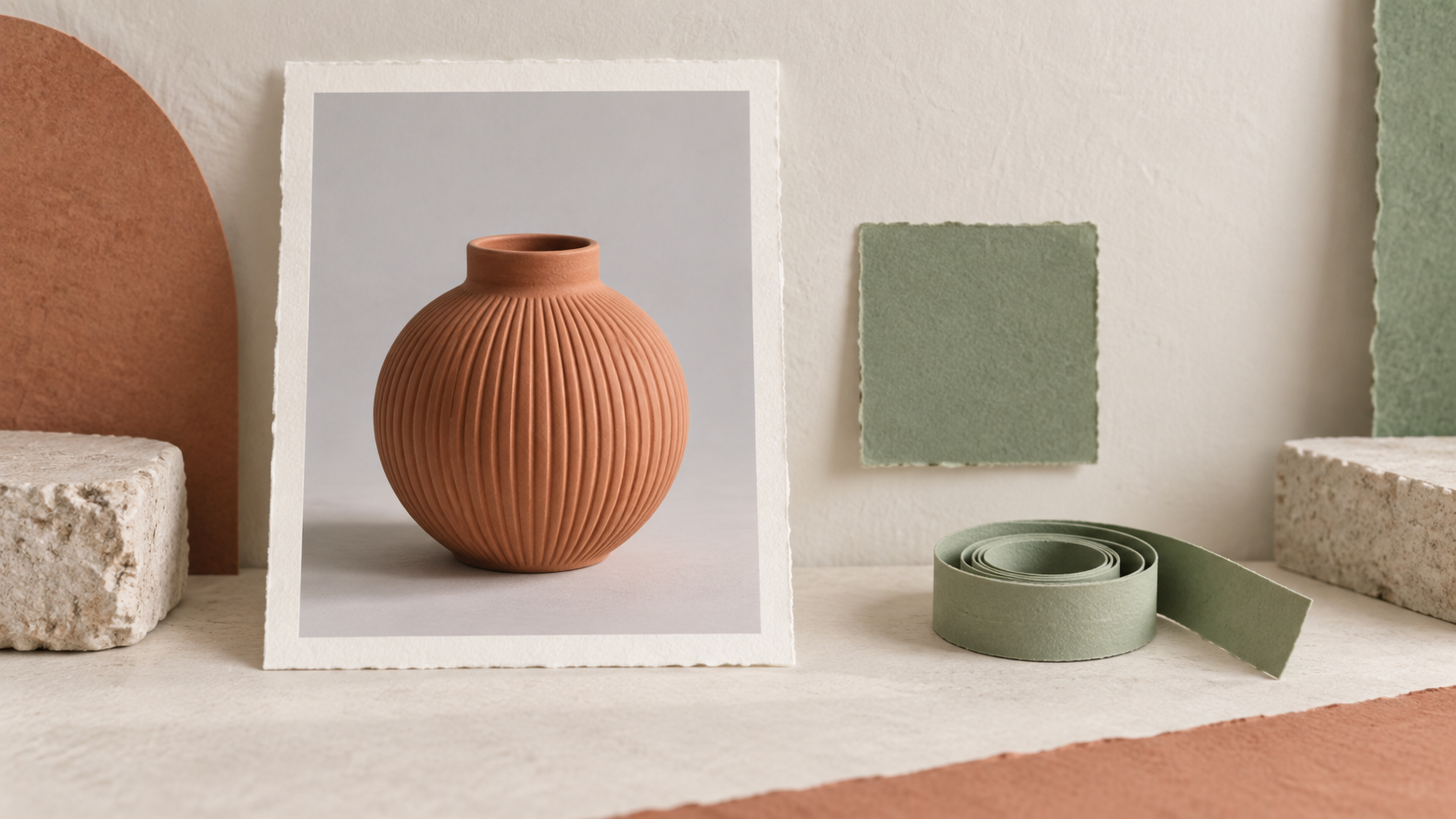
Choose a source image where the subject's edges and important details are easy to see. For our vase, that means a visible rim, recognizable ribs, and enough space around the object to judge the background.
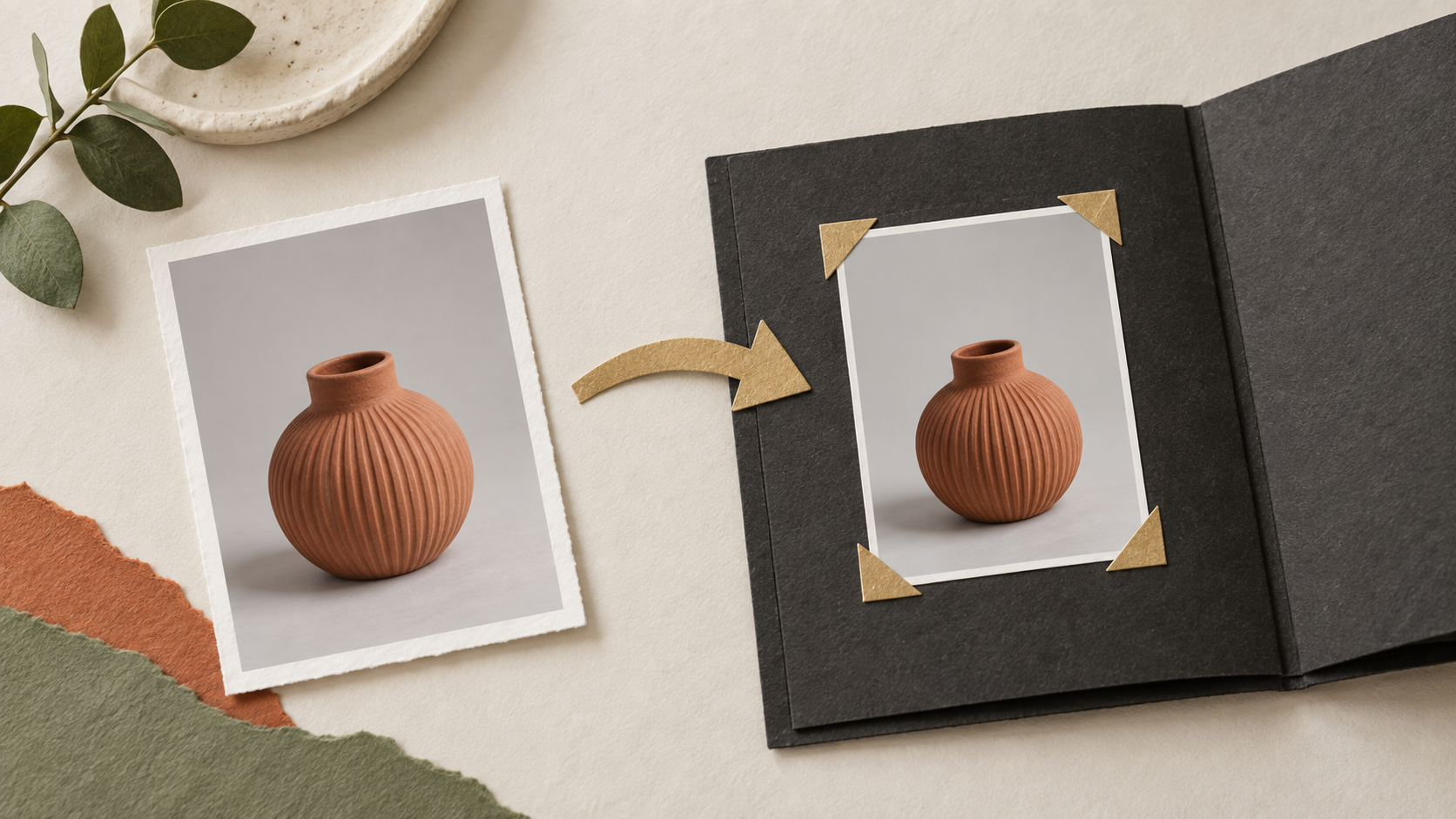
Keep an untouched copy before experimenting. You'll use it to compare later results, especially when an attractive edit quietly changes something you wanted to preserve.
Write your goal in one sentence: “Change the gray background to muted sage green.” Then list what should stay: the vase's shape, terracotta color, ribbed texture, position, and soft shadow.
This separation makes an AI photo editing task easier to evaluate. If you request a new background, dramatic lighting, extra flowers, and a different camera angle together, it's harder to identify which instruction caused an unwanted change.
2. Open Image editing and add your reference
Open the Pitovee AI image editor. This link opens the Video workspace, so switch to Image, then select Image editing. Check that the current mode reads Image editing before continuing.
The reference area is marked Required. Click Choose file and select the image you want to edit. For this walkthrough, use the vase photo you prepared, rather than an unrelated style image.
Check that your file appears in the reference area. The interface lists an image limit of 20 MB; follow the current limit and any format guidance shown when you upload. If the file is rejected, resolve that before submitting a request.
Sign in if the creation control asks you to. Choosing the editing mode and adding the required reference establishes the starting point for your edit.
3. Write an image editing prompt that names the change
Use the Creative prompt field to explain both the change and the details you want preserved. A useful image editing prompt gives you something specific to check afterward.
Try this:
Change only the pale gray background to a smooth, muted sage green. Keep the terracotta vase in the same position and at the same size. Preserve its round shape, open rim, vertical ribs, and natural clay color. Maintain the soft lighting and realistic contact shadow. Do not add flowers, text, or extra objects.
Think of those preservation instructions as a brief, not a guarantee. You still need to inspect the output.
When you edit images with AI, describe the visible result you want instead of asking for something vague like “make it better.” A named color, a clear subject, and a defined change give the next revision a useful direction.
4. Check the model, image count, size, and credits
Review the settings before creating the edit. The interface includes Model, Number of images, Size, and a watermark setting. The visible model selection is Doubao-Seedream-5.0-pro; check the options currently available in your account.
For a first attempt, one image keeps the review manageable. Choose a size appropriate for your intended use, and read the available options rather than assuming a size label guarantees a particular crop or exact dimensions.
Check the displayed creation cost against your balance. The cost shown for one configuration shouldn't be treated as a fixed price for every model, size, or image count.
Read the prompt once more, confirm the reference, and submit using the available creation control. After the request finishes, compare the returned image with your original before deciding whether to keep it.
5. Compare the edit and refine one problem
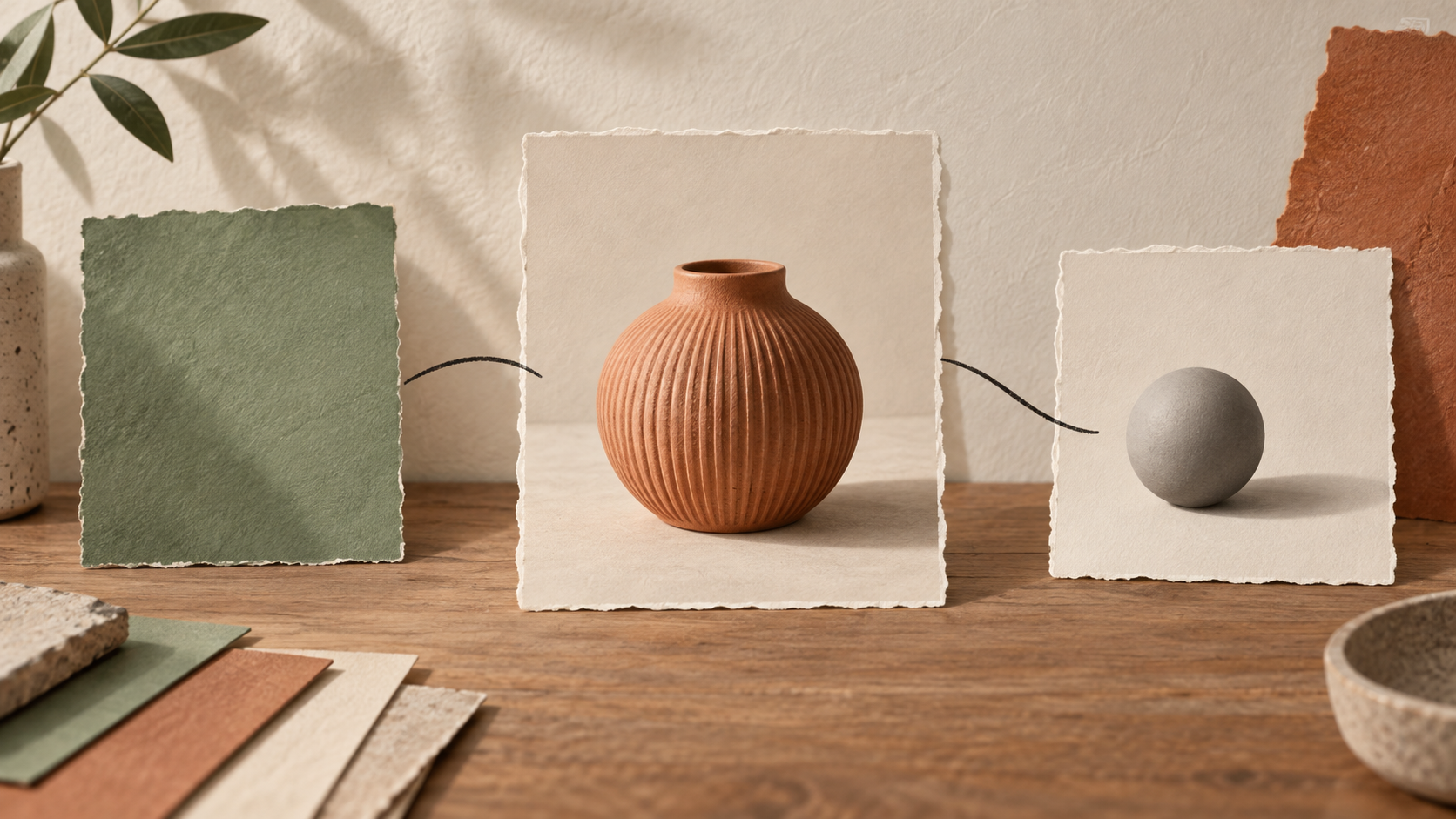
Look at the whole image first. Did the background become the green you intended? Does the vase still sit naturally in the scene? Then zoom in on its rim, ribs, outline, and shadow.
An appealing color change can still introduce a warped edge or smoother texture. Judge the result against your original goal, not just whether the new image looks polished.
If the vase changes shape, repeat the attempt with the original source and emphasize its proportions. If the green is too bright, specify a less saturated sage. Change one instruction at a time while keeping the other settings consistent.
Save the prompt and settings alongside the version you prefer. This helps you compare versions and plan the next edit.
Review the image at its intended display size, too. A small flaw that disappears in a thumbnail may stand out on a product page. Keep the original and edited files separately so you can revisit the decision later.
AI image editing tutorial: common questions
Do I need to upload an image?
Yes. Image editing marks the reference image as required. Use Image generation when you want to begin with a text prompt instead of editing an existing picture.
Will every original detail stay unchanged?
Exact preservation isn't guaranteed. Name the details that matter in your prompt, then compare the result with the source. Pay particular attention to edges, texture, lettering, and proportions.
How many credits does an edit use?
Check the current creation cost after choosing your model and output settings. Confirm your balance before submitting; don't assume the example configuration applies to every request.
Conclusion: make the first change easy to judge
Use this AI image editing tutorial to start with one photo and one specific change. Add your reference, describe what should change and stay, then review the result. Open the Pitovee AI image editing workspace, switch to Image editing, and work from that clear brief.
Related articles
Follow this Pitovee AI image generation tutorial to write clear prompts, choose settings, refine results, and create an image with a focused visual direction.
AI Product Photography Prompts: Six Styles for Your Holiday CampaignsAI product photography prompts help you explore lighting, surfaces, and campaign compositions. These six original styles show how to define the image's purpose while keeping the real product's shape, packaging, and important details central to the review.
Black Friday Video Ad Prompts: Six Product Scenes for Sale CampaignsPlan Black Friday video ad prompts around product reveals, gift sets, and mobile ads, then add accurate prices, sale dates, and clear offer text during editing.