AI Image Generation Tutorial: Create Your First Image with Pitovee AI
Follow this Pitovee AI image generation tutorial to write clear prompts, choose settings, refine results, and create an image with a focused visual direction.
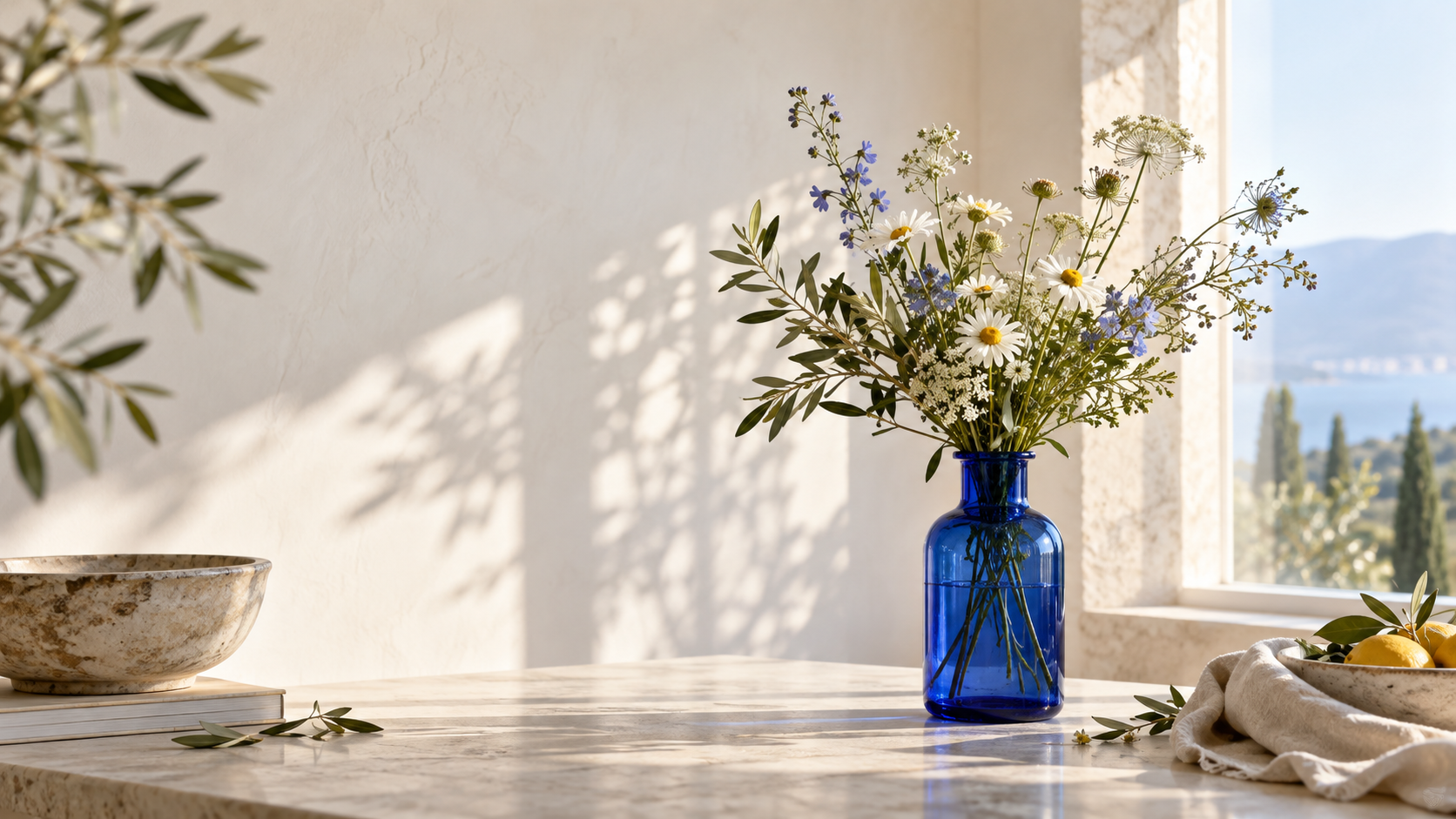
This AI image generation tutorial begins with one simple art direction: a cobalt-blue glass bottle holding wildflowers on a pale stone table. It is specific enough to guide your choices, but small enough to revise without losing the plot. By the end, you will have a repeatable way to move from an idea to an image you can assess clearly.
Open Pitovee AI’s AI image generator and work through the example. The page is built around a Creative prompt, Image generation and Image editing modes, plus controls that appear after you choose a model. Your available options may change, so treat this as a method rather than a fixed recipe.
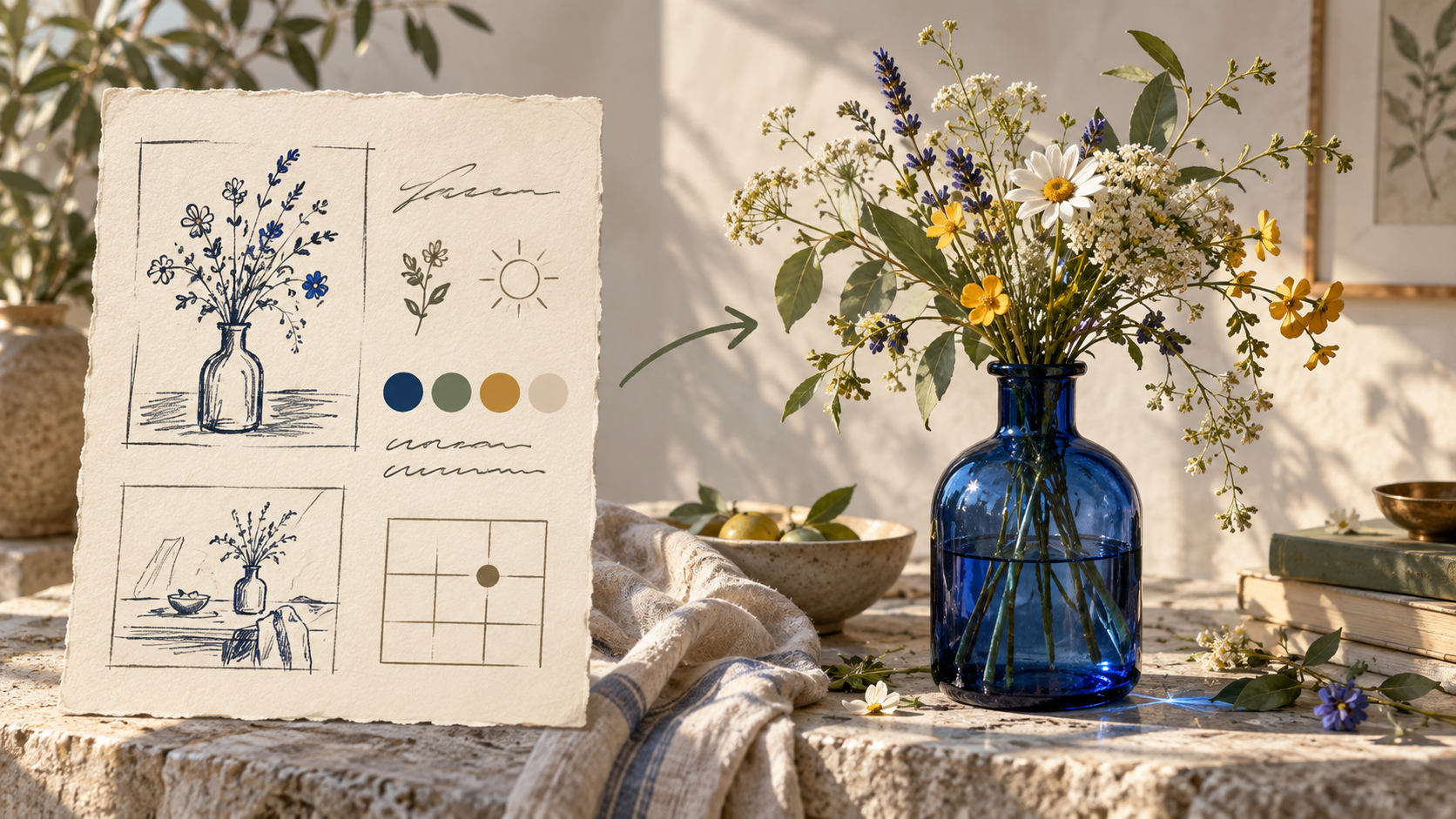
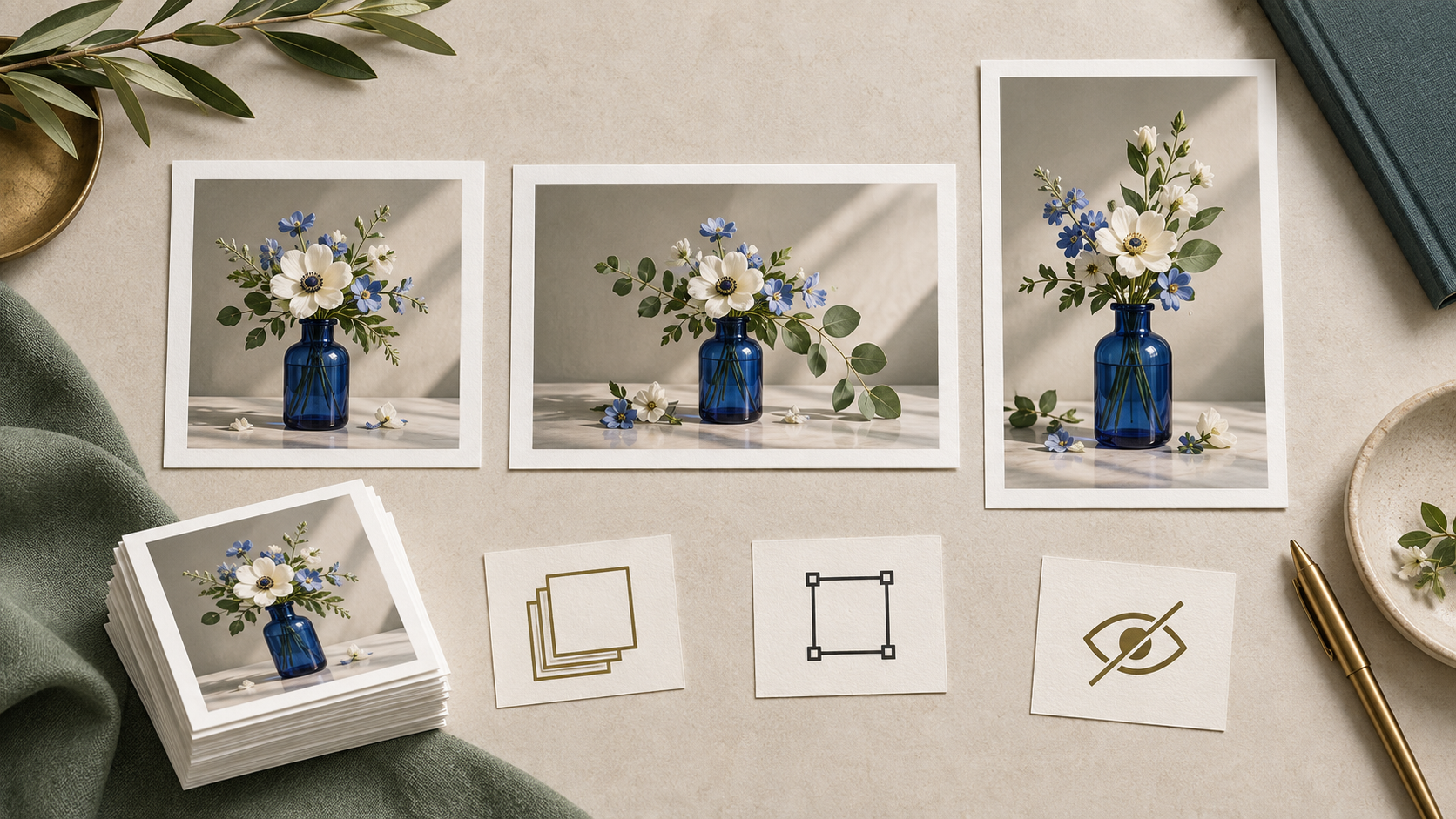
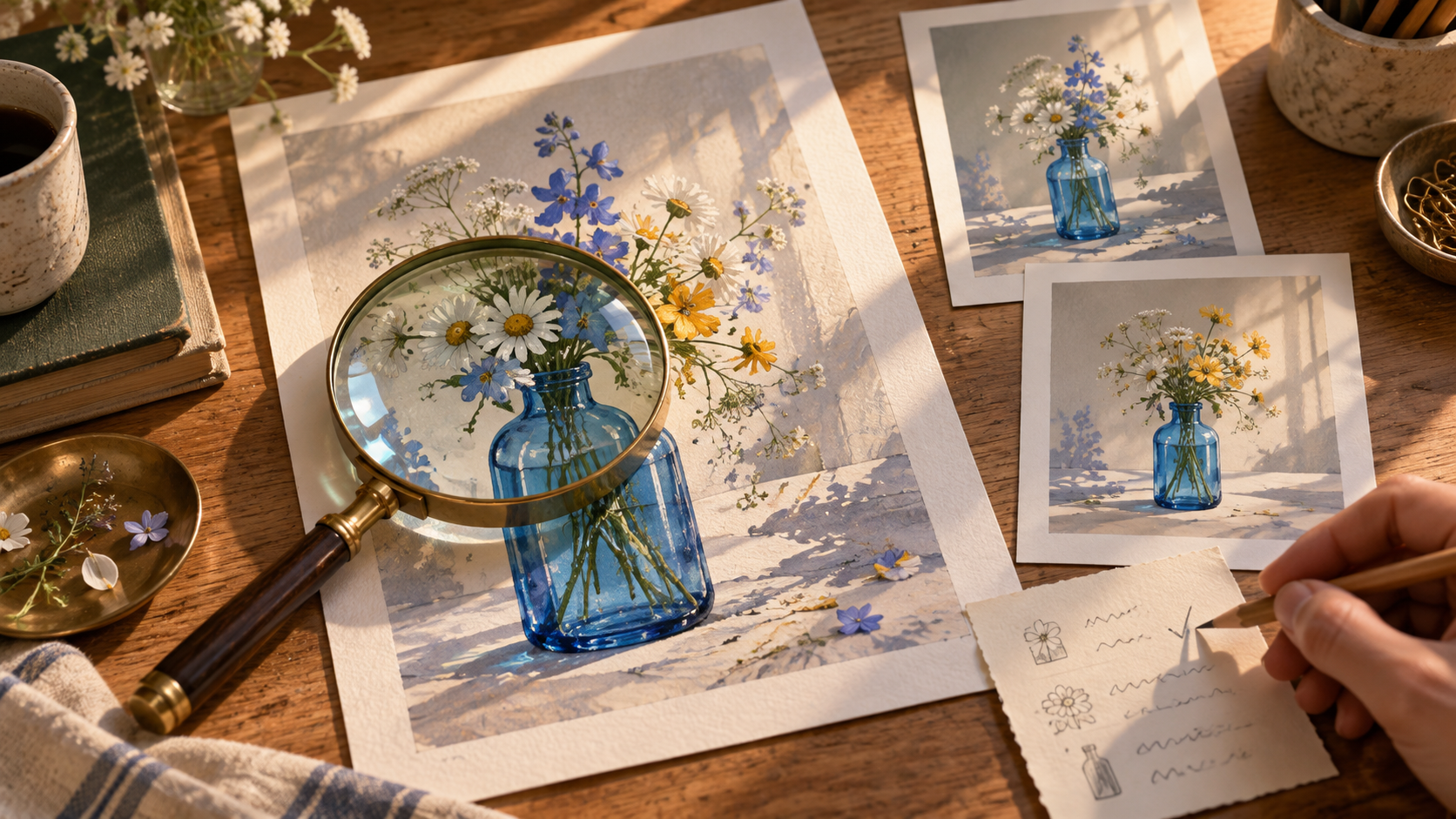
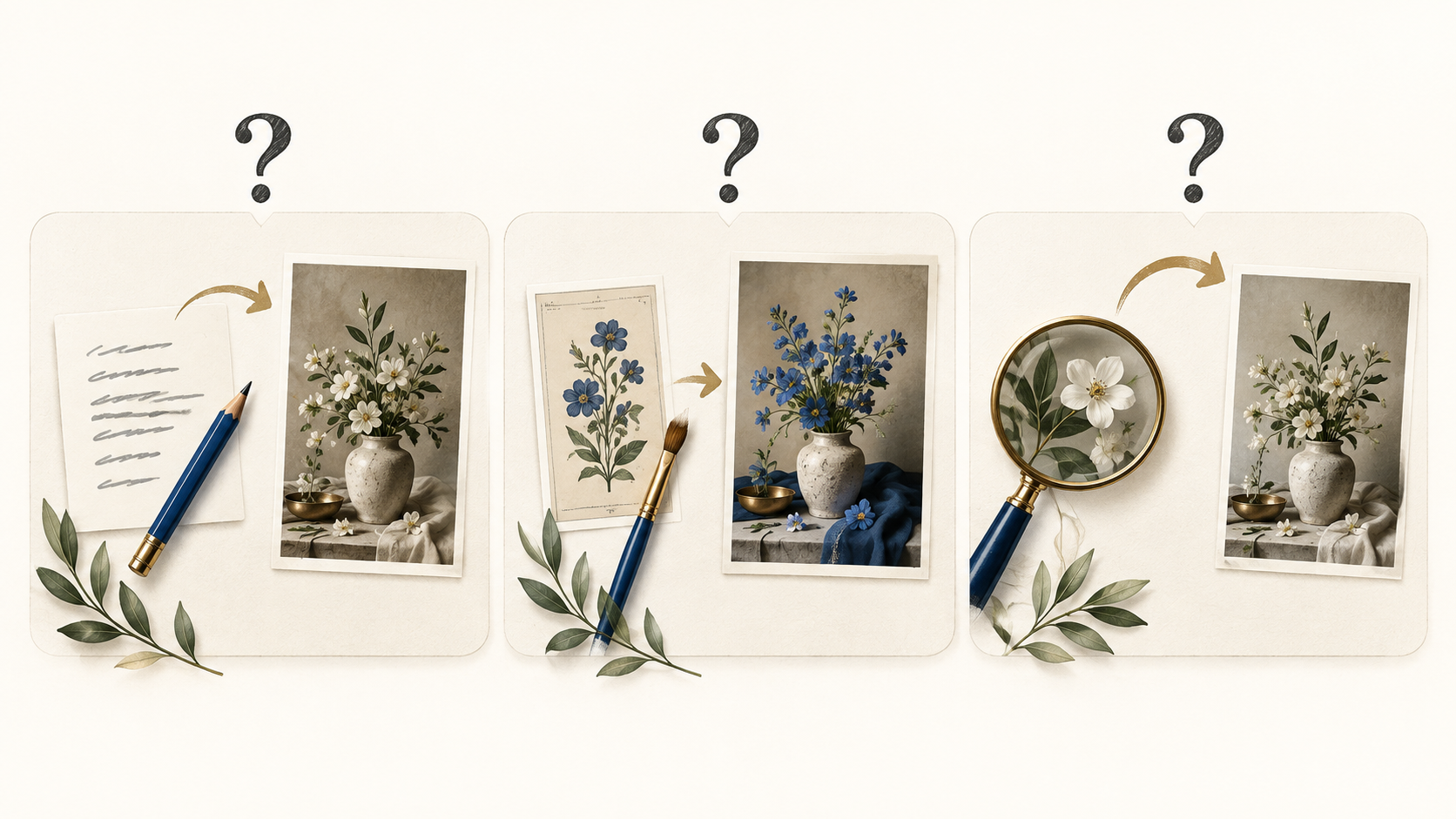
These editorial illustrations explain the tutorial idea. They are not samples created in Pitovee AI.
1. Start with one clear image idea
The quickest way to improve a first result is to decide what the picture should communicate before opening any settings. For this tutorial, the intended feeling is “quiet, fresh, and sunlit.” The subject is the blue bottle and wildflowers. The setting is a pale stone table by a window.
Write those choices in one short brief. Add only details that matter to the image: a cobalt glass bottle, airy white and blue flowers, soft morning sun, editorial still-life photography, and open space on the left. Avoid loading the first prompt with unrelated styles, objects, or camera angles.
This tiny brief also gives you a useful test later. If the result shows the right objects but feels crowded or cold, you know what to revise. A focused idea makes an AI image generator easier to direct.
2. Write an AI image prompt in layers
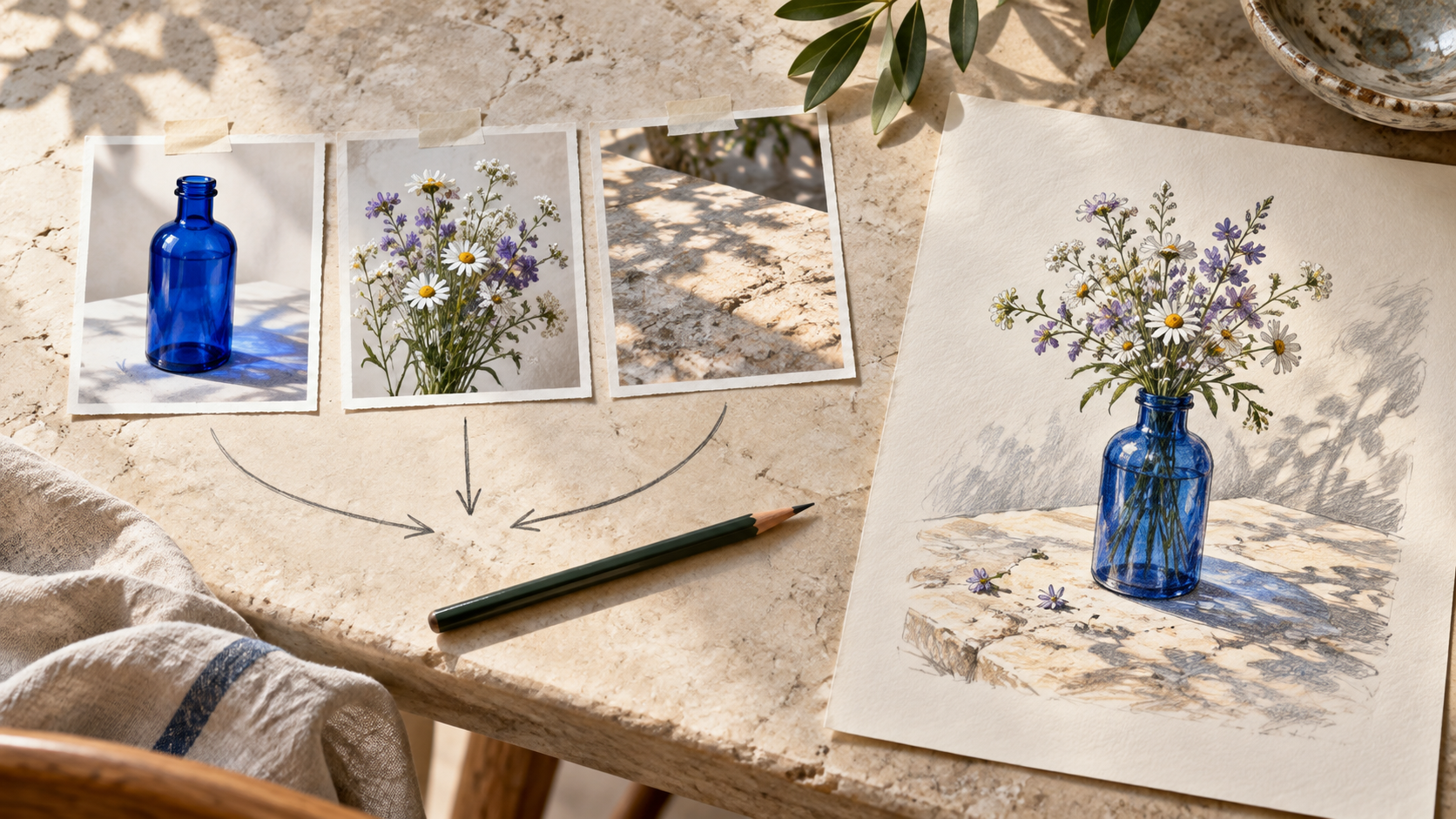
An effective AI image prompt usually answers five questions: what is in the scene, where it is, how it is arranged, what it should look like, and how it should feel. Put the important details first, then add the style and lighting.
Try this in Pitovee AI’s text-to-image generator:
A cobalt-blue glass bottle holding delicate white and blue wildflowers on a pale stone table beside a window. Editorial still-life photography, wide composition with open space on the left, warm morning sunlight, soft shadows, realistic glass and petals, calm refined mood.
Read it as if you were handing a brief to a photographer. “Beautiful flowers” is vague; “delicate white and blue wildflowers” gives the image a clearer direction. Keep one visual priority per phrase. If you want open space for a headline, say so rather than hoping it appears.
3. Improve the prompt instead of starting over
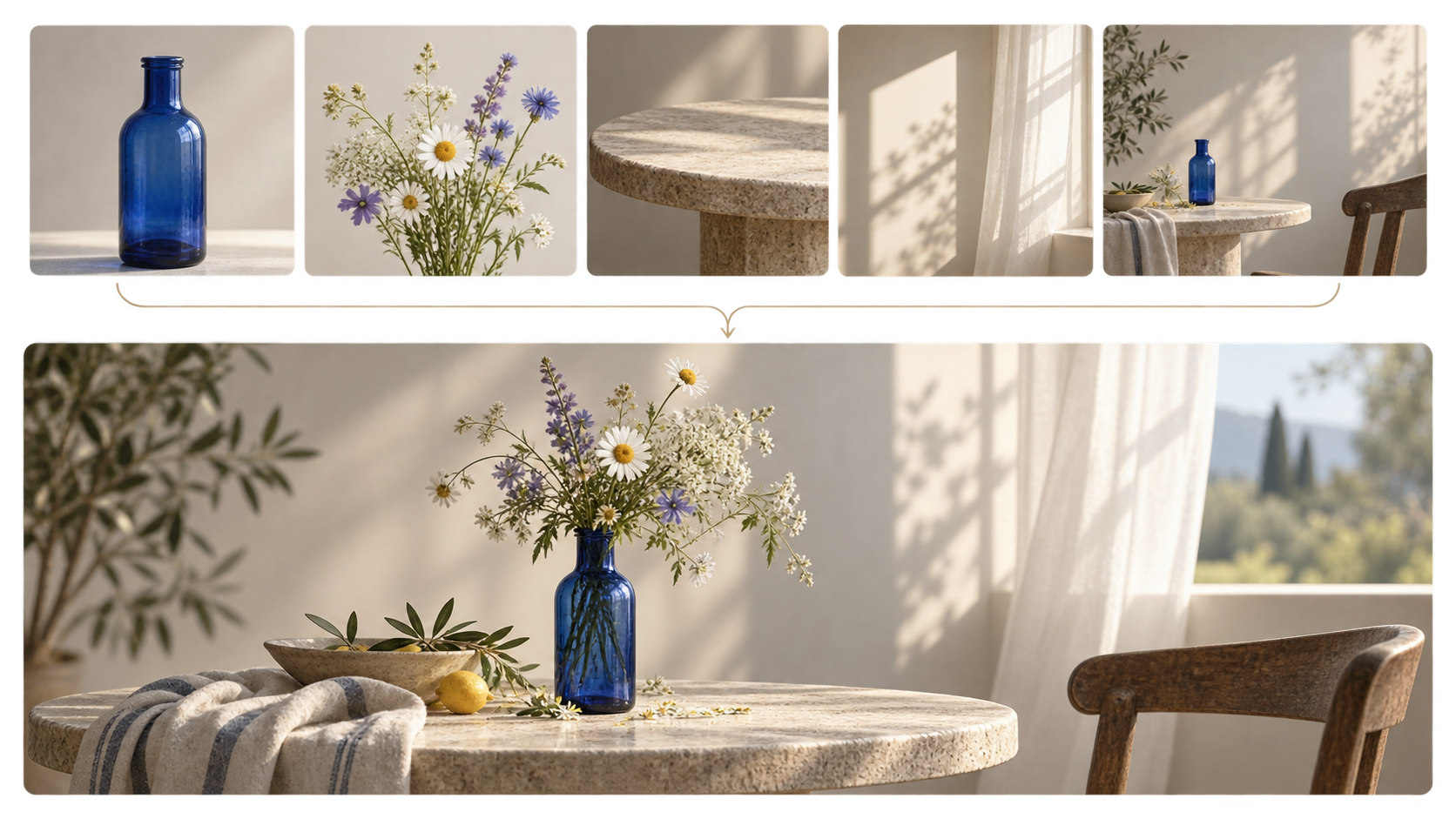
Your first image is a response to the brief, not a final verdict. Look for one gap between the intention and the result. Perhaps the bottle is the wrong color, the bouquet is too dense, or the shadows are too dramatic. Change the phrase that controls that one gap, then generate again.
For example, if the flowers fill every corner, add “an airy, minimal arrangement with visible negative space.” If the light feels flat, try “low-angle morning sunlight casting gentle window shadows.” Keep the bottle, setting, and composition instruction unchanged while you test that revision.
This is more useful than replacing the entire prompt after every attempt. A small change gives you a comparison you can understand. Save the version you prefer, along with the phrase that made the difference.
4. Choose image settings for the job
The visible workspace includes a Model selector, Number of images, Size, and a watermark control. It also shows Image generation and Image editing as separate modes. Inspect the options available in your signed-in session before making a choice; model names, outputs, and credits can change.
Start with one image when you are still testing the prompt. A single result is easier to judge and helps you notice whether the core brief works. When you need alternatives for a mood board, choose a larger count only if the available control supports it.
Size should follow the destination. A wide image may suit a website banner, while a square crop can suit a post or presentation. The page shows a 1K size option in the visible controls, but choose the current size that fits your real use. Check the displayed creation cost and watermark setting before you submit.
5. Use AI image editing when you have a strong starting point
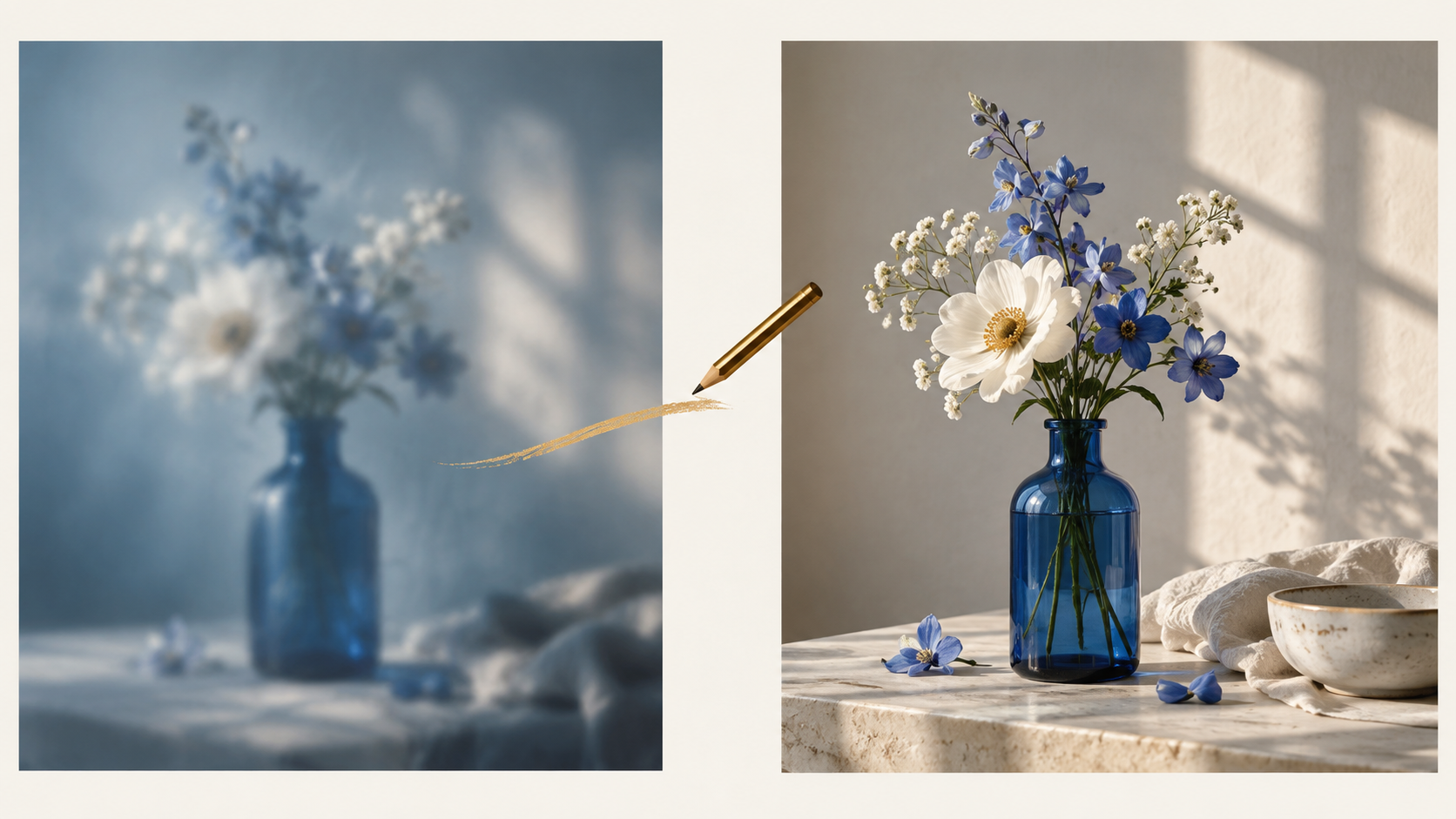
Image generation is useful when you are inventing a scene. AI image editing is a better next step when you already have an image with a composition worth preserving and only need a focused change. The page presents Image editing as a separate mode, so select it when that matches your task.
For example, begin with a photograph or a result you like, then ask for one clear adjustment: “Keep the blue bottle and composition. Replace the flowers with small white and blue wildflowers. Preserve the pale stone table and warm morning light.”
The more precise the requested change, the easier it is to assess whether the edit served your goal. Review the bottle’s shape, the flower edges, and the light direction after each attempt. If several things need changing, make one controlled pass at a time.
AI image generation tutorial: common questions
Do I need an elaborate prompt?
No. A short prompt with a subject, setting, composition, lighting, and mood is usually more useful than a long list of competing ideas. Add detail only when it controls something you care about.
How many images should I generate?
Start with one while you learn what the prompt does. Generate more options when you need to compare directions and the current workspace offers that choice.
What should I check before creating an image?
Confirm the selected mode, model, image count, size, watermark setting, and displayed cost. Then make sure the prompt states the one visual outcome you actually need.
Conclusion: build a repeatable image-making habit
The value of an AI image generation tutorial is not a single perfect prompt. It is a way to make each attempt teach you something: choose a clear idea, describe it in layers, change one detail, and judge the result against your brief. Open Pitovee AI’s image generator and use the bottle-and-wildflowers example as a starting point for your own visual direction.
Related articles
AI product photography prompts help you explore lighting, surfaces, and campaign compositions. These six original styles show how to define the image's purpose while keeping the real product's shape, packaging, and important details central to the review.
AI Image Editing Tutorial: Make Your First Edit with Pitovee AILearn how to edit an image in Pitovee AI, upload your reference, write a focused prompt, check output settings, and review changes before saving your result.
Black Friday Video Ad Prompts: Six Product Scenes for Sale CampaignsPlan Black Friday video ad prompts around product reveals, gift sets, and mobile ads, then add accurate prices, sale dates, and clear offer text during editing.