AI Music Video Tutorial: Plan Scenes, Animate Images, and Edit Music
Follow an AI music video tutorial built around a storyboard, reference images, original scene prompts, and an editing process that matches visuals to your song.
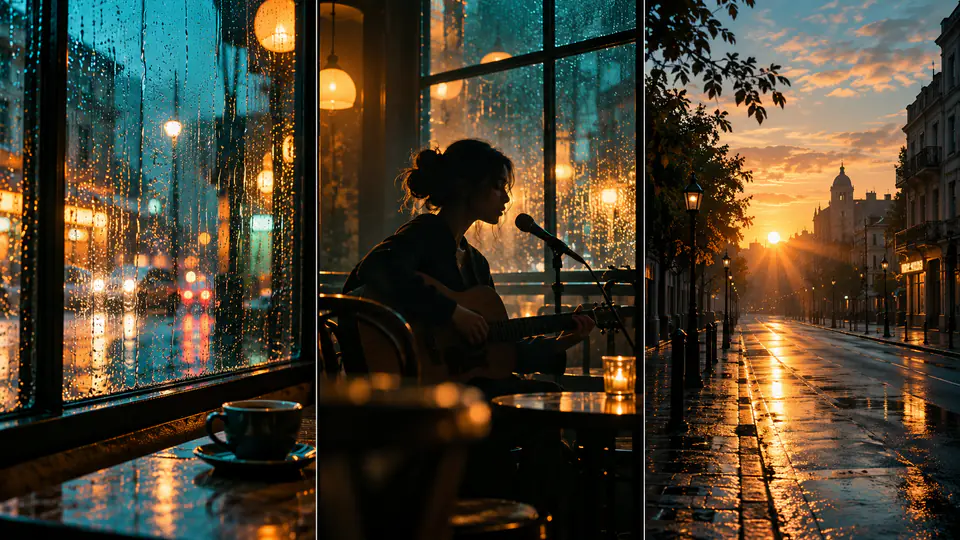
Quick Summary
This AI music video tutorial connects a song excerpt to a storyboard, reference images, and an edited sequence. You can build an AI music video from images by generating separate visual scenes, then aligning selected moments with the track in an editor.
Why the Song Should Guide the Scenes
The music provides a structure you can use before generating anything. A quiet introduction, a growing verse, and a strong chorus suggest different visual energy.
Listen for a meaningful change rather than planning a cut on every beat. An instrument entering, a pause, or a returning phrase may give the sequence a better transition point.
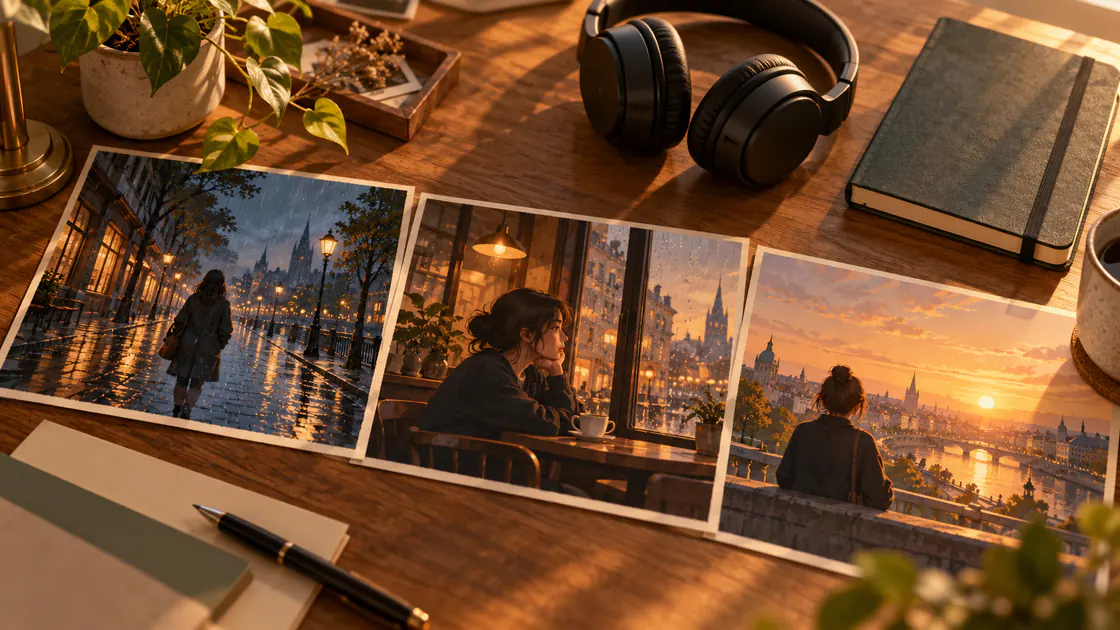
For example, a reflective excerpt could move from a rainy street to a café and then to morning light. The locations develop an idea while keeping the mood connected. Write that progression down so every scene has a purpose.
Key Takeaways
- Begin with an excerpt you can finish and review.
- Map a few meaningful musical changes.
- Prepare references with compatible style and color.
- Generate visual shots separately.
- Align music and selected clips in an editor.
- Review both visual continuity and musical fit.
Prepare the Track and AI Music Video Storyboard
Use a track you are authorized to publish with the finished video. Keep its audio file available for the editing stage.
Create a short scene table before generating references.
| Musical moment | Scene | Intended movement |
|---|---|---|
| Introduction | Empty rainy street | Short camera approach |
| Verse | Person beside a café window | Small reflective gesture |
| Chorus | City opening into morning light | Gentle upward reveal |
| Ending | Sunlit empty table | Fixed view |
This AI music video storyboard gives each generation a defined job. Add notes about a recurring character, clothing, and lighting where necessary.
Compare the reference images together. A new location can look different, but the sequence should retain a deliberate visual direction.
AI Music Video Tutorial: Five Production Steps
1. Map the excerpt
Mark the opening, major transition, and ending. Write a brief note about what the audience should feel or understand at each moment.
Keep the first sequence manageable. You can extend the production after the excerpt works.
2. Prepare the scene references
Choose or create one reference for each planned scene. Check recurring faces, objects, and color choices before animation.
If a character appears in several shots, use an explicit continuity plan. A musical transition does not automatically hide a changing face or outfit.
3. Generate visual candidates
Use Pitovee's video workspace to inspect the selected model's reference and output controls.
Describe the visible action and camera behavior. Do not assume the workspace automatically accepts your track or synchronizes movement to it; those capabilities must be checked for the actual workflow.
Save the prompt and reference beside each candidate.
4. Assemble the sequence around the track
Import the chosen visuals and music into an editor. Place the main visual change at the musical moment you identified.
Trim weak openings so useful action reaches the intended point. Use longer shots where the music needs room, and faster cuts where they support the excerpt's energy.
Choose transitions that preserve the scene's meaning. An elaborate effect is unnecessary when a clear cut communicates the progression.
5. Review and revise the complete excerpt
Watch the export with sound, then without it. Identify whether a weak moment comes from visual continuity, timing, or the selected scene itself.
Revise the relevant part rather than generating an entirely new sequence without a clear reason.
Three Original AI Music Video Prompts
These AI music video prompts describe atmospheric scenes rather than exact singing or instrument performance.
Rainy opening
Rain creates soft ripples in the shallow puddles along the empty street. The camera moves slowly toward a café window where warm light glows. Reflections stay aligned with the buildings and pavement throughout the shot.
Check building shapes and the relationship between rain and reflections.
Quiet verse
The person sits beside the café window and slowly turns the cup in their hands. Their expression remains reflective. The camera holds a steady medium view while rain moves across the glass behind them.
Review the face, cup, and hand interaction. A simpler gesture may be a useful alternative when the contact becomes inconsistent.
Chorus reveal
The camera rises gently above the street to reveal morning light between the buildings. Warm sunlight reaches the upper windows while the lower street remains softly shaded. The movement ends on the bright opening above the city.
Check that the movement reaches a readable endpoint and preserves the architecture.
Review the Sequence With and Without Sound
With sound, ask whether the scene changes support the music. Check that important visual moments arrive where intended.
Without sound, ask whether the images still form a connected sequence. Inspect the character, props, lighting direction, and transitions.
If exact lip synchronization is central, evaluate a workflow specifically suited to that requirement. Atmospheric scenes provide another creative route and can tell a story without a visible singing performance.
Keep the strongest accepted versions. A saved baseline makes later revisions easier to assess.
FAQ
Can I create a music video from still images?
Yes, through a workflow that animates selected references and assembles the scenes in an editor.
Will the generator automatically follow my song?
Only when the specific tool and workflow support that feature. Otherwise, align the visuals during editing.
Do I need a singer on screen?
No. Landscapes, objects, and narrative scenes can develop the song's visual idea.
Conclusion
Use this AI music video tutorial to complete one sequence whose scenes and timing follow the track deliberately. Prepare compatible references, generate manageable actions, and refine the selected clips in an editor. The result should work as a visual story and as a companion to the music.
Related articles
Use AI action figure prompts to design original toy portraits, organize accessories and packaging, and plan a short animation while checking visual consistency.
Introducing Pitovee AI: An AI Image to Video Generator for CreatorsExplore Pitovee AI, an AI image-to-video generator for creative projects. Discover its image tools, credits, and useful ways to get your first idea moving.