AI Video Extension Tutorial: Continue Your Scene with Pitovee AI
Learn how to extend a video in Pitovee AI: choose an eligible library clip, write a continuation prompt, check the settings, and review the join between scenes.
A good shot sometimes ends just before the moment you want to keep. This AI video extension tutorial shows how to plan that next moment in Pitovee AI, from choosing an eligible source to checking the transition. We'll use a yellow balloon drifting above a misty valley as a simple example.
Open Pitovee AI's AI video extender. Before starting, have a successfully generated video in your library with its final frame saved. That requirement matters: the extension screen asks you to select an eligible library video.

Illustrations show the planned continuation, not actual Pitovee AI video results.
1. Choose a source with a clear ending
Start by signing in and opening your library. Select a successfully generated video that has a saved final frame, using its extension action where available. If the workflow reports that the source is unsuitable, choose another eligible video.
Watch the ending carefully. Where is the subject? Which direction is it moving? Is the camera fixed or moving? These details give your continuation a starting point.
For our example, imagine the yellow balloon is drifting slowly right above a valley. The camera stays wide and still, and sunrise lights the hills. A useful next moment would keep that movement going.
Pick an ending you can describe clearly. A sudden cut or a subject disappearing behind something gives you more uncertainty to resolve when reviewing the continuation.

2. Select Video extension and check the reference area
In the Video workspace, choose Video extension. Confirm that your library source is selected before writing the prompt. The notice in this mode asks for a successfully generated library video whose final frame has been saved.
Below the prompt, the reference area is marked optional and includes Choose file. Use it to add supporting material when useful and accepted by the selected model. An optional upload does not replace the eligible library source.
For a first attempt, keep the setup simple. The original scene already establishes the balloon, valley, and light. Add a reference only when you have a clear reason for introducing it.
If the source notice remains unresolved, return to the library selection. Repeatedly adding files to the optional area won't establish that the required source has been selected.

3. Write a video extension prompt about what happens next
Describe the next action from the existing ending. In the Creative prompt field, state what should continue and which visual details should remain consistent.
Try this video extension prompt:
Continue from the final frame. The same yellow balloon drifts slowly to the right above the misty green valley. Maintain its shape, altitude, and gentle speed. Keep the camera wide and fixed, with the same soft sunrise lighting. Continue the existing shot without a cut or new subjects.
This gives you observable things to check afterward: direction, speed, shape, framing, and light. It expresses your intention without guaranteeing that every detail will be preserved.
When you extend video with AI, choose one clear next action. Introducing a storm, a new location, and a camera orbit together makes the transition much harder to assess. Save those ideas for a separate scene.
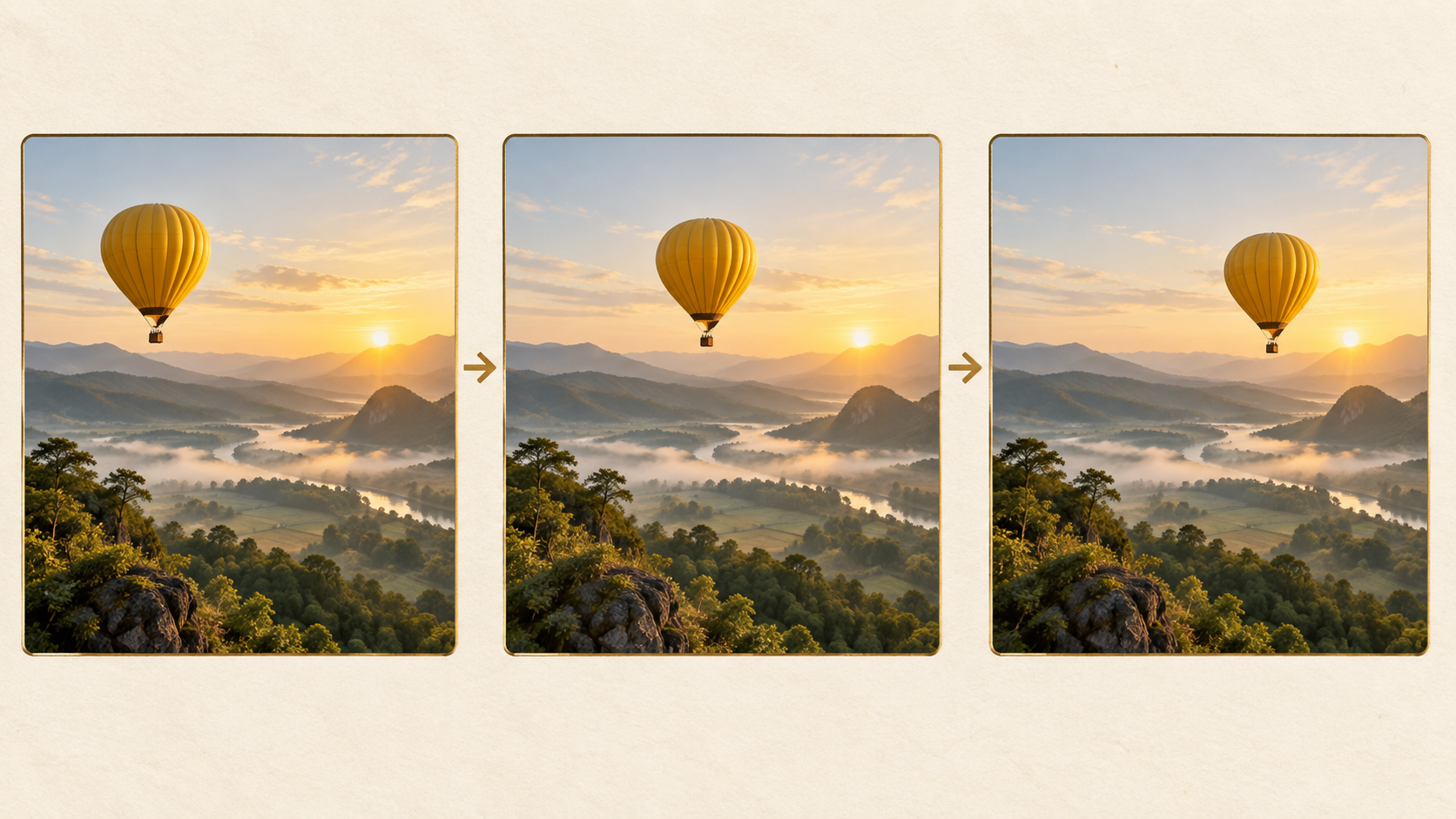
4. Review the settings before requesting a continuation
Check the selected model and the controls offered for that source. The interface shows options for Generate audio, Aspect ratio, Resolution, watermark choice, and duration. Availability can depend on the selected configuration.
Use the original clip as your guide. Matching its framing gives you a sensible starting point for video continuation. A 16:9 composition and 480p resolution appear among the visible settings; inspect your current choices rather than assuming every model offers the same list.
Read the duration options carefully. Check whether the interface explains what the value means for the extension; don't assume a displayed number is the final combined runtime.
Review audio separately. Generate audio is a creation setting, so check the resulting sound before assuming the original track continues intact. Confirm the displayed cost and your balance, then submit the request using the available creation control.

5. Check the join, then refine one instruction
Review the original ending and the new beginning together. If the continuation arrives separately, place it after the original in your editing workflow before judging the transition.
Watch at normal speed first. A sudden jump in balloon position or camera angle can interrupt the scene even when each part looks attractive on its own.
Then compare the frames around the join. Check the balloon's size, movement direction, horizon, and lighting. If audio is present, listen for an abrupt change there too.
Choose one problem for the next attempt. If the balloon accelerates, clarify “maintain the same slow drift.” If the camera shifts, emphasize “fixed camera, unchanged perspective.” Keep the source and other settings consistent so you can make a useful comparison.
Your aim is a continuation that serves the scene. Keep the original and your preferred result so each revision remains easy to compare.
Save the prompt and settings beside each version. A short note about the remaining issue helps you compare later attempts without relying on memory.

AI video extension tutorial: common questions
Can I start with any uploaded video?
The extension notice specifies a successfully generated library video with a saved final frame. Check eligibility there first; an arbitrary upload alone does not establish that requirement.
Do I have to use Choose file?
The reference area is marked optional. Select the eligible library source first, then add supporting material only when your chosen workflow needs it.
Will the extension match perfectly?
Exact continuity isn't guaranteed. Compare the original ending with the continuation and refine the prompt if the subject, movement, camera, lighting, or sound changes unexpectedly.
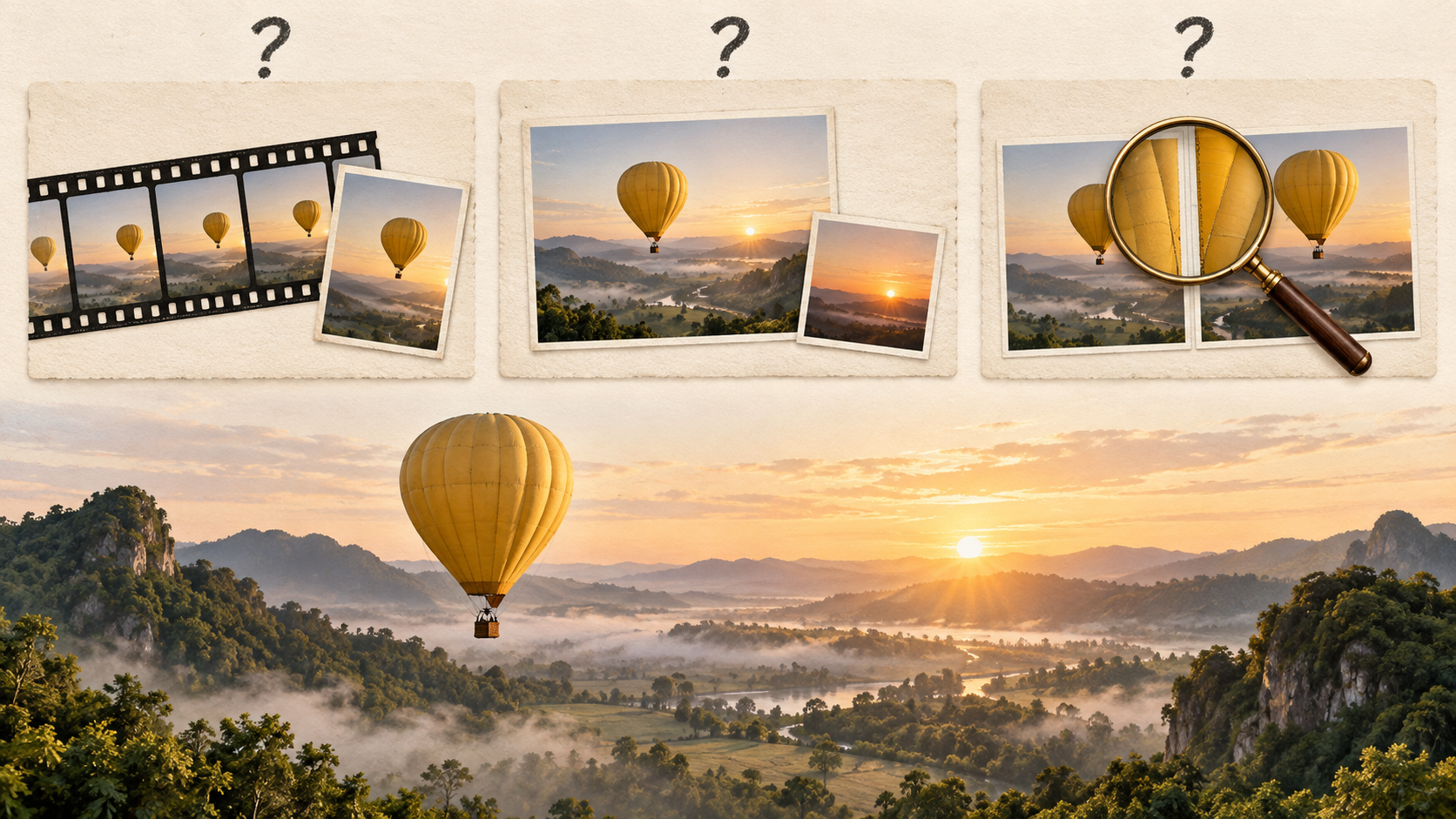
Conclusion: continue the moment that already works
Use this AI video extension tutorial to plan one believable next moment. Choose an eligible source, describe the ongoing action, and inspect the transition carefully. Open Pitovee AI's video continuation workspace and give your scene a little more room to develop.

Related articles
Explore Diwali AI video prompts for glowing diyas, festive tables, and personal greetings, with thoughtful visual details and clear animation directions to try.
Black Friday Video Ad Prompts: Six Product Scenes for Sale CampaignsPlan Black Friday video ad prompts around product reveals, gift sets, and mobile ads, then add accurate prices, sale dates, and clear offer text during editing.
AI ASMR Prompts: Six Surreal Scenes with Clear Motion and Sound CuesCreate AI ASMR prompts for crystal fruit, soft textures, and impossible foods, with one action, camera, and audio directions you can refine after each attempt.