Christmas AI Video Prompts: Six Festive Scenes for Cards and Campaigns
Explore Christmas AI video prompts for snow globes, cozy windows, festive products, and greeting cards, with clear motion and space for your message in editing.
Quick Summary
Christmas AI video prompts can create a moving background for a personal card, a shop greeting, or a seasonal campaign. These six original examples give each scene one action, a camera direction, and a review question before the final message is added.
Choose the Message Before the Motion
Decide what the viewer should notice first. A personal card may center on the greeting; a product campaign needs the item to stay dominant; an atmospheric clip can let the movement carry the scene.
Choose a reference with a clear focal point and enough surrounding space. Detailed decorations can distract when many objects move at once.
Write the visual purpose in one sentence. “Create a quiet snow-globe background with room for a greeting” gives the first generation a useful boundary. Once the composition works, refine its motion.
Key Takeaways
- Define whether the clip serves a card or campaign.
- Begin with one seasonal action.
- Leave a readable area for the final message.
- Inspect snow, glass, architecture, and product details.
- Add exact wording and timing in an editor.
Six Christmas AI Video Prompts
1. A snow globe village
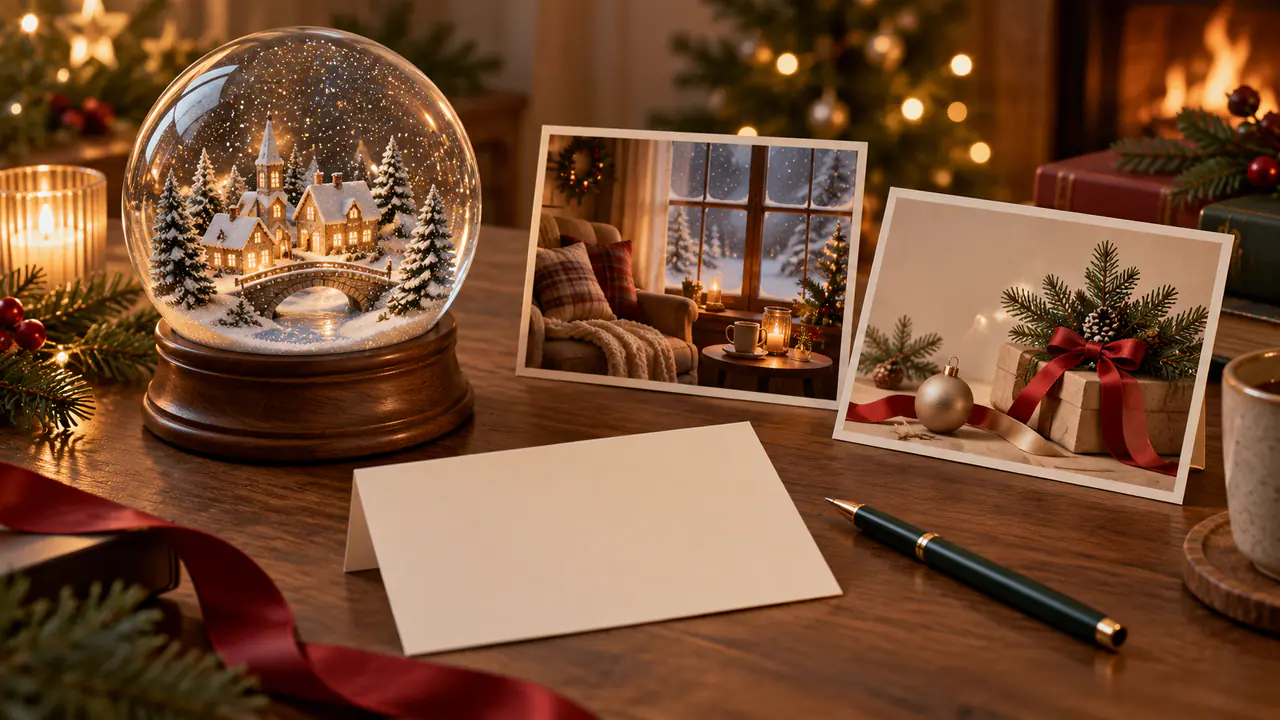
A clear snow globe contains a small village with warmly lit windows. Fine snow moves slowly inside while the houses remain stable. The camera makes a short approach toward the glass, preserving the globe's round shape and the village's miniature proportions.
Best for: A greeting-card opening.
Review: Glass shape, building continuity, and snow contained within the globe.
2. A cozy window
A warmly lit window looks out onto a quiet snowy street. Snow drifts gently outside while a small candle glows on the interior sill. The camera stays fixed, keeping the frame and indoor objects steady throughout the scene.
Best for: A calm personal greeting.
Review: Snow stays outside and the window remains structurally coherent.
3. A festive mantel
A simple mantel holds evergreen branches, small lights, and neatly arranged decorations. A gentle lighting change creates a warm glow. The camera moves slowly along the mantel, keeping each decoration in its original place.
Best for: A warm seasonal background.
Review: Repeated objects, branches, and ornaments remain recognizable.
4. A shop greeting
A small shop window displays wrapped gifts and warm lights. The camera approaches slowly from the pavement toward the display. The window and gift arrangement remain consistent, with a clear area for the shop's greeting added later.
Best for: A local business message.
Review: Reflections, display geometry, and space for the wording.
5. A seasonal product scene
The reference product stands beside a simple ribbon and a small evergreen branch on a warm neutral surface. The camera makes a short push toward it while soft background lights glow. Preserve the item's visible shape, color, and details.
Best for: A restrained product campaign.
Review: The product stays separate from decorations and represents the real item.
6. A quiet winter forest
Snow rests on the branches of a peaceful forest. Fine flakes drift through the foreground while the camera moves gently along an open path. The scene ends with the path and a distant warm light clearly visible.
Best for: An atmospheric ending.
Review: Stable tree structure and a clear direction of travel.
Adapt Snowy Scene Video Prompts in Four Steps
- Choose the reference. Keep the subject unobstructed and reserve space for text where needed.
- Limit the movement. Start with light snow, a small lighting change, or a short camera path.
- Inspect the model. Explore the scene in Pitovee's video workspace, checking the selected model's reference and output controls.
- Review the candidate. Watch the action, then inspect the important structures. Revise one relevant instruction.
Snowy scene video prompts add moving detail across the frame. Check whether the flakes obscure a face, product, or greeting area.
For a complex photograph, begin with a fixed camera. If the image already contains snow, describe its movement instead of replacing the entire setting.
These examples are starting instructions rather than tested results.
Build an AI Christmas Greeting Video
Select the strongest coherent part of the scene and assemble it in an editor. Add the exact names, greeting, and any event information after choosing the visual output.
For an animated Christmas card, AI can supply the visual atmosphere while editable text provides a dependable message. Keep the wording concise and give it enough time to read.
Choose placement based on the actual clip. A bright candle or moving snowfall can make nearby text difficult to see. Preview the export at its intended size and normal speed.
A greeting can use a short opening, a readable message, and a quiet finish. If it repeats, inspect the join between ending and beginning. An abrupt lighting change may need a deliberate fade or a different selected segment.
Add sound through a workflow you can control. Review the final audio and visual together rather than assuming the generator has created a finished card.
FAQ
Can I animate an existing Christmas photograph?
You can try when the model supports reference images. Preserve the composition and introduce restrained movement.
How much snowfall should I request?
Begin with light snowfall so important details remain easy to inspect.
Should the generator write the greeting?
Use editable text when exact spelling, names, and readability matter.
Conclusion
Christmas AI video prompts work well when movement and message have clear roles. Choose one seasonal action, preserve the important details, and add the final greeting after reviewing the clip. Finish with a preview of the complete card or campaign at its intended viewing size.
Related articles
Plan Black Friday video ad prompts around product reveals, gift sets, and mobile ads, then add accurate prices, sale dates, and clear offer text during editing.
Diwali AI Video Prompts: Six Warm Greeting Scenes with Diyas and LightExplore Diwali AI video prompts for glowing diyas, festive tables, and personal greetings, with thoughtful visual details and clear animation directions to try.
AI Video Extension Tutorial: Continue Your Scene with Pitovee AILearn how to extend a video in Pitovee AI: choose an eligible library clip, write a continuation prompt, check the settings, and review the join between scenes.