Seedance 2.5 Features: What Changed in Video Length and More Control
Explore Seedance 2.5 features from its official announcement, including longer videos, reference control, targeted editing, and practical tests for creators.
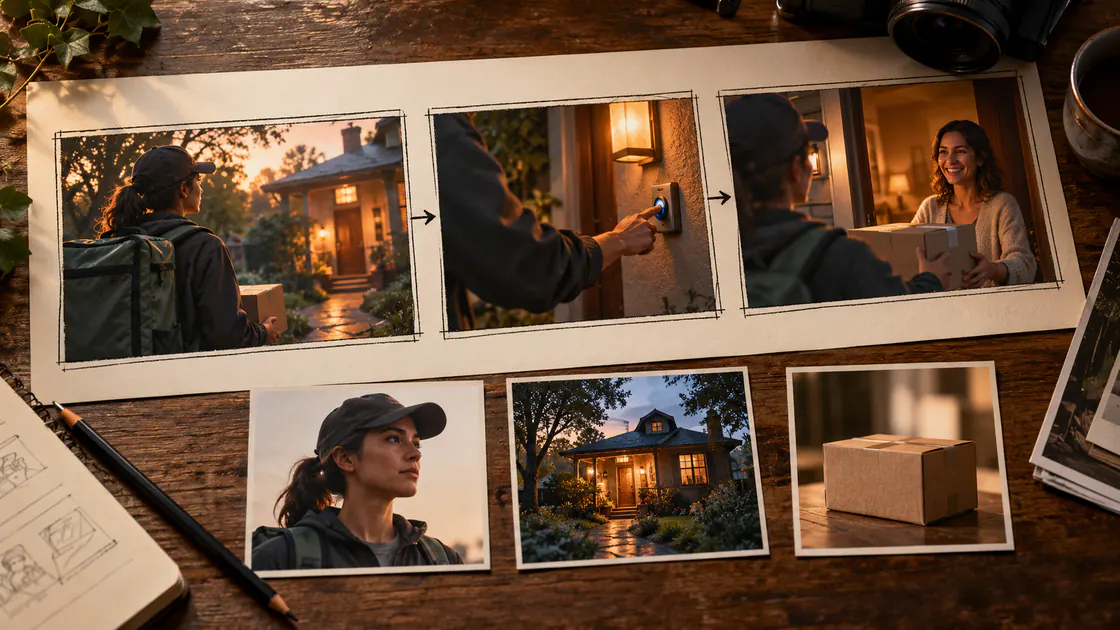
Quick Summary
Seedance 2.5 features expand the scene lengths, reference packages, and revisions described in ByteDance's announcement. This guide separates those verified release statements from original evaluation advice, helping creators decide what to test for a real project.
Research is current to October 4, 2026. The examples below are proposed briefs, not independent performance results.
Why the Feature List Needs a Production Brief
A capability tells you what to investigate. Your project tells you what counts as success.
For example, a longer generation may suit a continuous delivery scene, but the scene still needs coherent clothing, props, architecture, and action order. A larger reference allowance gives you room to communicate more information, while conflicting references can make your own brief harder to manage.
Identify the actual requirement before comparing models. Write the intended scene and the details that must survive it. Then connect the announced features to that requirement.
Key Takeaways
- Attribute release specifications to the official announcement.
- Check the controls exposed by the actual interface.
- Give every reference a clear role.
- Review coherence across the entire required scene.
- Evaluate targeted revisions separately from initial generation.
Confirmed Seedance 2.5 Features
ByteDance announced Seedance 2.5 on July 31, 2026. The release describes up to 30 seconds in a single generation, multi-round extension, inputs of up to 30 images, 10 video clips, and 10 audio clips, and targeted audio/video editing at specified timestamps. These are announced capabilities rather than measured results from this article. Official Seedance 2.5 announcement
Availability and exposed controls should be checked in the surface you use. A release description does not establish the current settings or access conditions of every application.
For planning, treat length, references, and revision as three separate questions. You can test each without using the maximum input allowance.
Seedance 2.5 vs 2.0: Five Comparison Dimensions
The February 12, 2026 Seedance 2.0 launch described multimodal inputs and multi-shot output of up to 15 seconds. That provides a historical comparison point, not a complete current benchmark between versions. Official Seedance 2.0 launch
Use these five dimensions for Seedance 2.5 vs 2.0 evaluation:
| Dimension | Practical comparison |
|---|---|
| Who it is for | Does your project need a longer continuous action, or does it fit accepted short scenes? |
| Ease of use | How much work is needed to organize references and request the scene through the available interface? |
| Output quality | Does the actual candidate preserve the details and action order in your brief? |
| Key differences | Which announced controls are exposed and relevant to the task? |
| Recommendation by use case | Does the workflow produce usable material with reasonable review and cleanup for your project? |
These criteria are editorial recommendations. They do not establish which version produces better images or fewer errors.
If an existing workflow already handles the required scene, evaluate it before changing tools solely for a larger maximum. If longer continuous action is essential, test that requirement directly.
Test Seedance 2.5 Video Length in Four Steps
1. Define a complete action
Use a scene with a clear beginning and finish:
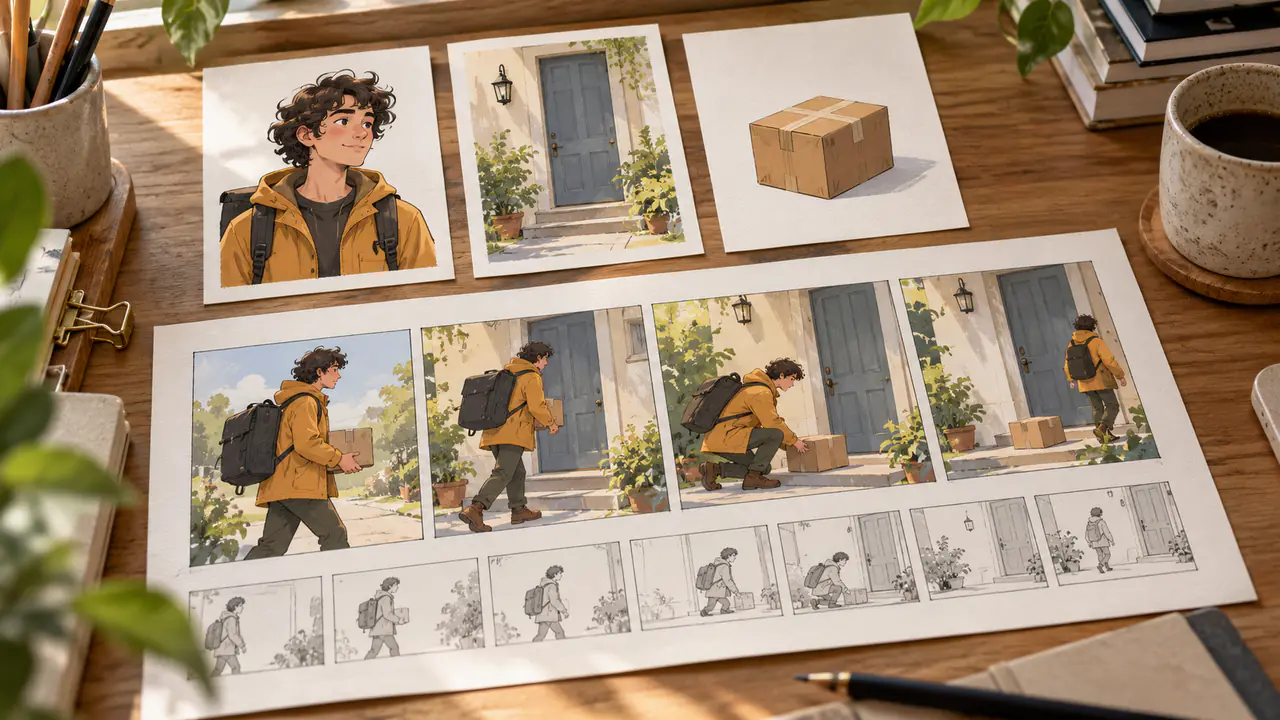
A courier approaches a doorway carrying a small parcel, pauses to check the address, and places the parcel beside the door. The camera holds a steady medium view, keeping the coat, bag, parcel, and doorway recognizable throughout.
This is an original test brief. Specify the action order before generating.
2. Prepare compatible inputs
Use clear references for the character, outfit, location, and parcel where the interface supports them. Resolve contradictory details before creating the candidate.
3. Generate for the needed duration
Check the available controls and choose a length that serves the scene. Do not treat the announced maximum as the duration every project should use.
4. Review the whole sequence
Inspect the opening, middle, ending, and transition points. Did the courier reach the doorway? Did the parcel remain coherent? Did the action finish in the intended state?
Record the actual usable portion of your own output. That makes Seedance 2.5 video length a practical production question.
Give Seedance 2.5 Reference Images Clear Roles
Begin with a small package: character portrait, outfit view, doorway, and parcel. Write a note explaining what each contributes.
Add references when they resolve uncertainty. If two images show different bags, settle the design first rather than leaving both as unexplained inputs.
For another scene-generation workflow, Pitovee's video workspace lets you inspect current model options and controls. Check its live selector rather than assuming it offers Seedance 2.5.
Keep the selected references with the accepted prompt so a later revision starts from the same brief.
Evaluate Targeted Editing Separately
Choose one observable change and preserve the original version. For example, request a parcel-color adjustment during a defined part of the scene.
Compare before, during, and after the requested edit. Check the changed element and surrounding clothing, hands, shadows, and background.
Record attempts and cleanup from your own work. Only then can you assess whether the revision method helps your production task.
FAQ
Is the maximum announced length always useful?
No. Choose the duration needed and inspect coherence throughout it.
Should I fill every reference slot?
Use references with clear purposes rather than aiming for the maximum count.
Does the release prove superior output quality?
No. Announced capability and independent performance evaluation are different kinds of evidence.
Conclusion
Seedance 2.5 features are most useful when connected to a concrete scene and review plan. Evaluate the required length, reference roles, and targeted revision separately, then assess the complete production workflow. Base the decision on your project rather than headline specifications alone.
Related articles
Use New Year AI video prompts to plan fireworks, reflective city scenes, and personal greetings, then add exact countdown numbers and your 2027 message later.
Christmas AI Video Prompts: Six Festive Scenes for Cards and CampaignsExplore Christmas AI video prompts for snow globes, cozy windows, festive products, and greeting cards, with clear motion and space for your message in editing.
Introducing Pitovee AI: An AI Image to Video Generator for CreatorsExplore Pitovee AI, an AI image-to-video generator for creative projects. Discover its image tools, credits, and useful ways to get your first idea moving.