AI Product Video Tutorial: Turn Product Photos into Clear Video Ads
Follow an AI product video tutorial that turns clean product photos into short ad scenes, with motion prompts, label checks, and a practical editing workflow.
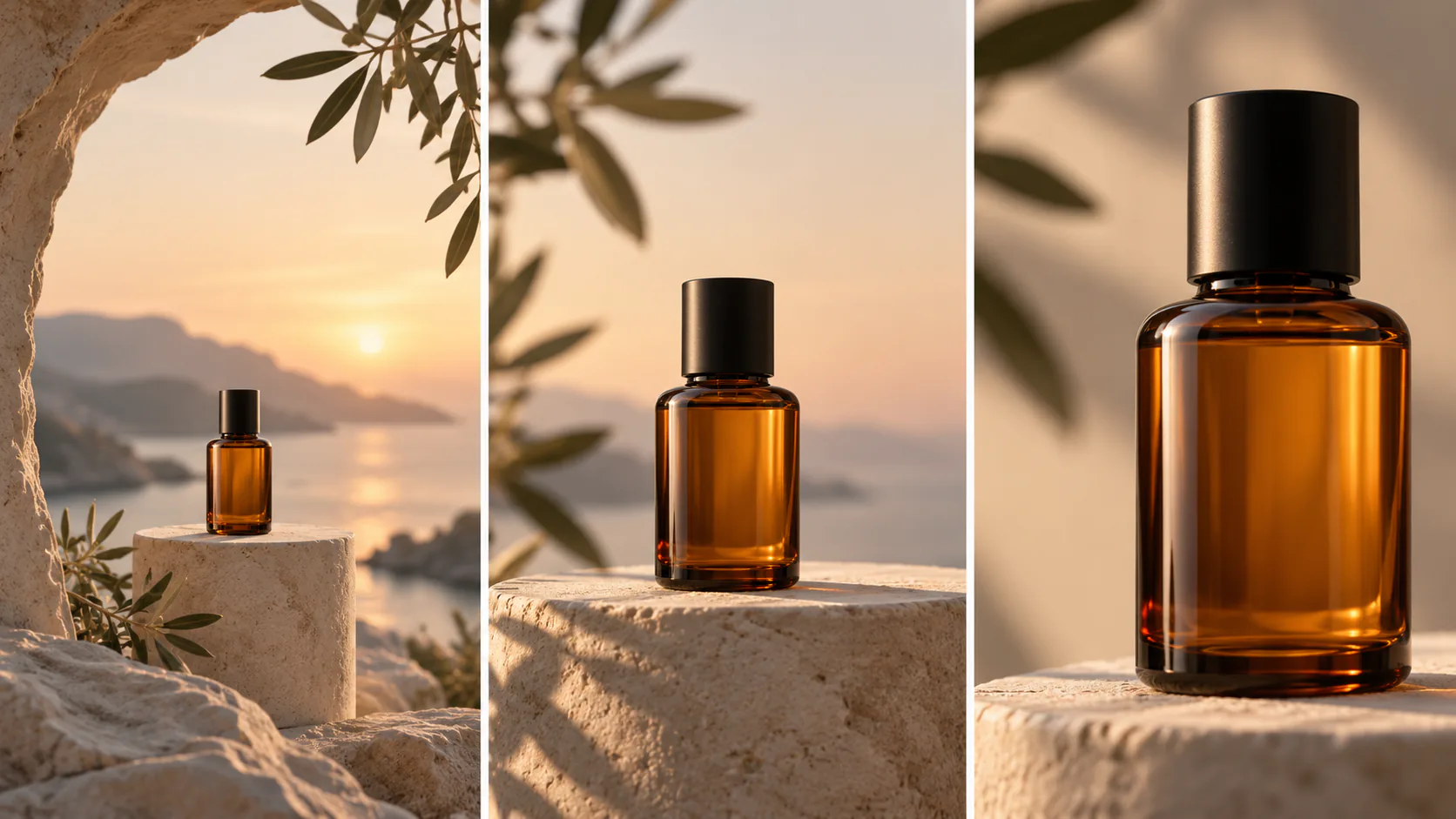
Quick Summary
This AI product video tutorial turns a clear product photograph into a short sequence with a reveal, a detail, and a closing message. It explains how to prepare the reference, write restrained motion prompts, review product accuracy, and add exact campaign information in an editor.
Why Product Accuracy Comes Before Atmosphere
A product scene must remain recognizable before its lighting or motion can serve the campaign. If the container changes shape or an accessory disappears, the attractive setting does not solve the underlying problem.
Define which details matter: silhouette, color, cap, handle, label area, controls, or included items. Use that list when selecting the source and reviewing the output.
Also distinguish decorative imagery from a demonstration. A bottle standing beside a window establishes atmosphere. A device visibly operating may communicate a claim about the real product. Use authentic footage where exact operation needs to be shown, and let generated scenes support the presentation around it.
Key Takeaways
- Use a photograph that clearly shows the real item.
- Give each shot one campaign purpose.
- Start with modest movement around the visible product.
- Check the item before adding graphics.
- Add verified prices and offer details as editable text.
Prepare the Product Photo and Campaign Brief
You need an authentic product reference, a short brief, and an editing workflow for final assembly. Check the intended placement before choosing the composition.
For example:
Show the amber bottle clearly, create a warm interior setting, and leave space for a short product name.
Choose a photograph with readable edges and an unobstructed view of important details. A large orbit from a front-facing image asks the model to reveal surfaces that are not shown. For an initial test, a short approach may be a more manageable instruction.
Remove distracting surroundings through an appropriate image-editing workflow when needed, while preserving the actual product.
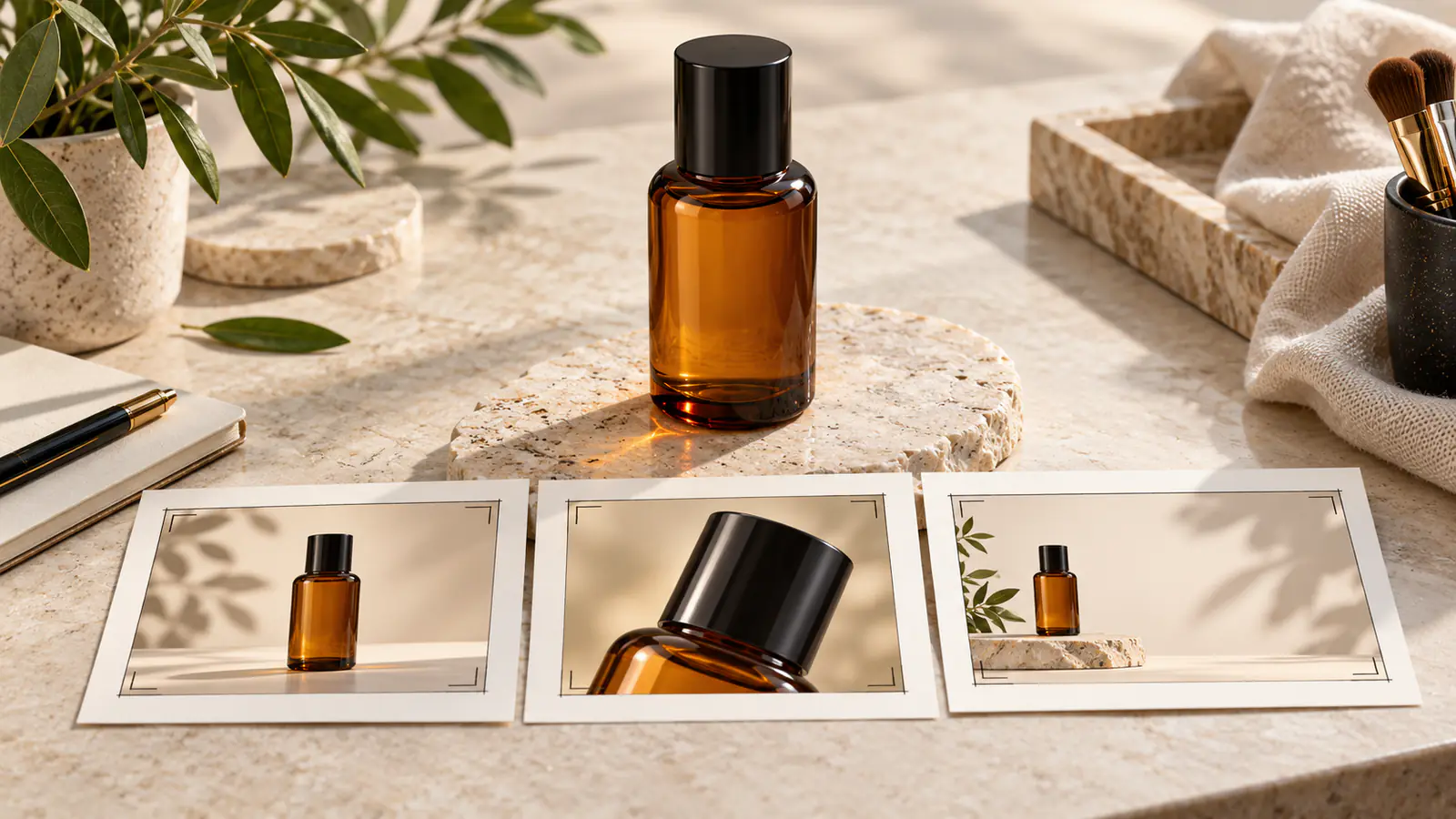
AI Product Video Tutorial: Six Production Steps
1. Choose the ad's main job
Decide whether the sequence introduces the product, emphasizes a visible detail, or presents a gift set. Write one sentence describing the audience's intended takeaway.
An AI ecommerce video can contain several shots, but each should contribute to that same message.
2. Match references to the planned shots
Use the complete product photograph for the reveal. Prepare a genuine close-up when the detail shot depends on a small feature. Plan a closing composition with enough space for the offer.
Keep the item and campaign styling compatible across the references.
3. Inspect the selected model's capabilities
Open Pitovee's AI video workspace. Check reference inputs, framing, duration, and other controls available for your selected model.
Do not assume that a setting offered by another tool is present here. Choose a shot that you can create and inspect through the available workflow.
4. Generate the shots separately
Begin with one manageable motion in each scene. Save the reference and prompt with the output so a revision can target a specific issue.
The three examples below provide a reveal, a detail, and a closing frame.
5. Review product identity
Pause on the cap, silhouette, label area, and any included accessories. Watch the whole clip for changes during camera movement.
If the product warps, simplify the motion or choose a clearer reference. Select the coherent portion only when it still serves the shot's purpose.
6. Assemble and add the campaign information
Place the accepted clips in an editor. Trim weak openings, arrange the sequence, and add approved product names, prices, dates, and actions.
Keep these details editable so a revised offer does not require rebuilding the generated scene.
Three Original Product Scene Prompts
These are proposed instructions rather than tested product results.
Reveal
The amber bottle stands on a pale stone surface beside a softly lit window. The camera makes a slow, short push toward it. A gentle highlight moves across the glass while the bottle remains upright and retains its original shape.
Detail
A close view centers on the bottle's cap and upper glass surface. The camera moves slightly sideways, creating a controlled reflection change. The cap, neck, and visible label area maintain their positions and proportions.
Closing offer composition
The bottle sits on the right side of a clean warm background. The camera remains fixed. Soft light gives the scene gentle movement while the left side stays visually simple for a campaign message added later.
These product image to video scenes create a visual structure you can adapt to the actual item.
Review the Export at the Intended Size
Preview the completed ad on a phone or at the dimensions of its intended placement. Check whether the product remains identifiable and the message can be read at normal speed.
Look for shifting labels, changing proportions, duplicated objects, and inaccurate bundle contents. Inspect the text separately against the campaign brief.
For an AI product demo video, ask whether a viewer could interpret a generated action as evidence of actual performance. Replace that portion with authentic material when precise demonstration matters.
Record accepted references and scenes so later campaign versions begin from a clear baseline.
FAQ
Can I animate one product photograph?
You can try with a suitable model. Start with motion that relies mainly on the visible surfaces.
Should the generator create my discount text?
Add verified prices and discounts in an editor so you can control and update them directly.
Can generated footage show every product demonstration?
Use authentic footage where the operation or performance must accurately represent the real item.
Conclusion
This AI product video tutorial connects an authentic reference to manageable scenes and an editable campaign message. Preserve the product first, then refine motion and atmosphere. Finish with a review of both the visual sequence and the exact offer information.
Related articles
Create AI ASMR prompts for crystal fruit, soft textures, and impossible foods, with one action, camera, and audio directions you can refine after each attempt.
Halloween AI Video Prompts: Six Spooky Scenes to Create This OctoberExplore Halloween AI video prompts for haunted gardens, ghostly rooms, and quiet suspense, with camera directions and practical checks for each original scene.
AI Camera Movement Prompts: Control Pans, Orbits, and Dolly ZoomsWrite AI camera movement prompts that describe the shot clearly, distinguish pans from tracking, and help you test orbits, push-ins, and dolly zoom effects.