AI Video Editing Tutorial: Refine a Clip with Pitovee AI
Follow this Pitovee AI video editing tutorial to use a reference clip, write focused edit prompts, choose settings, and refine a scene one change at a time.
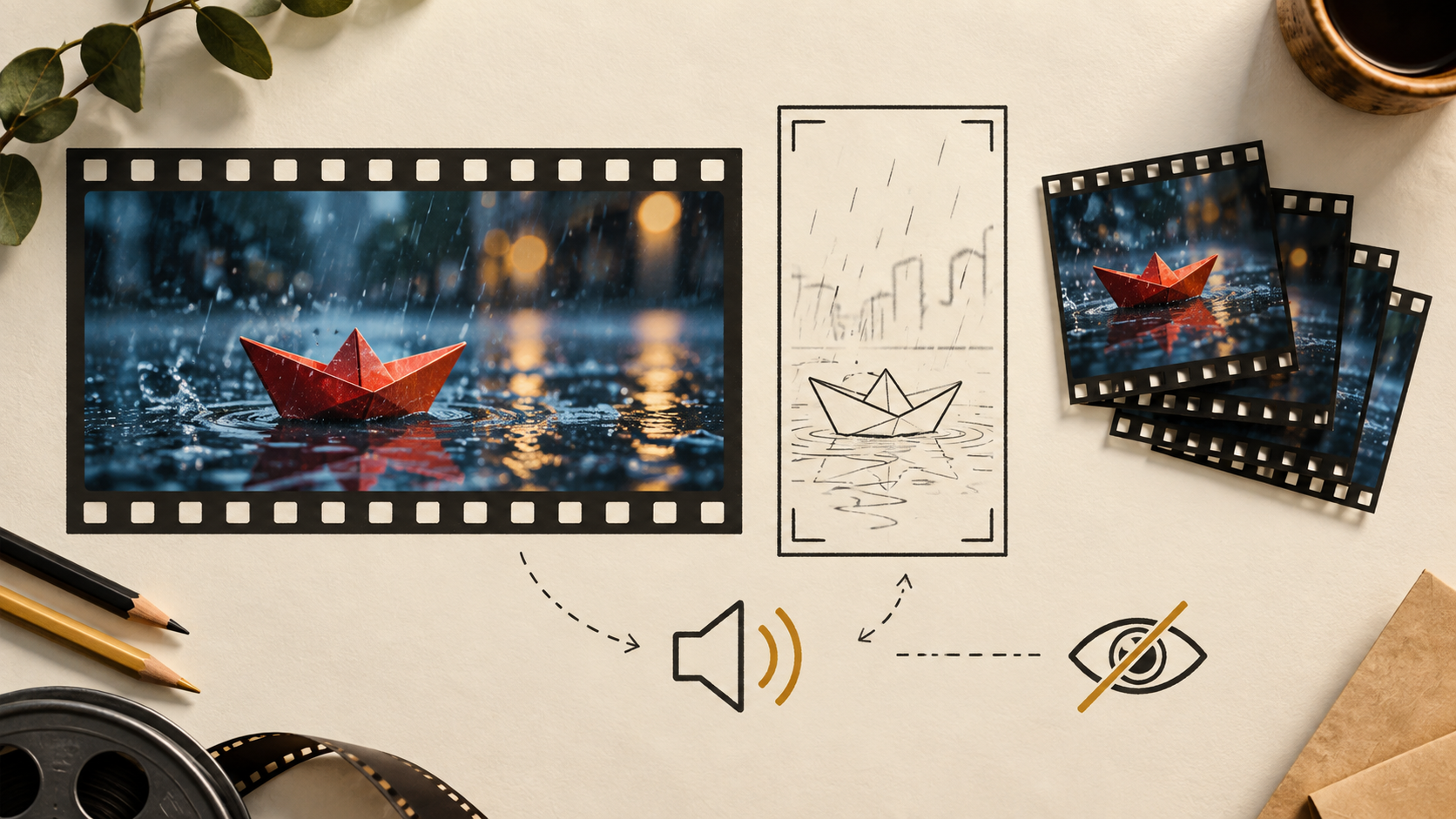
This AI video editing tutorial uses a small, clear example: a red paper boat floating through a rain puddle at dusk. Instead of trying to remake the entire scene, you will keep the boat and street as your starting point, then ask for one deliberate change. That is a practical way to learn how an AI video editor responds to your direction.
Open Pitovee AI’s video workspace and choose Video editing. The visible workspace separates Video generation, Video editing, and Video extension. Editing requires a reference file, so have a short clip ready before you begin. The available model and settings can change, which is why this guide focuses on a repeatable editing method.
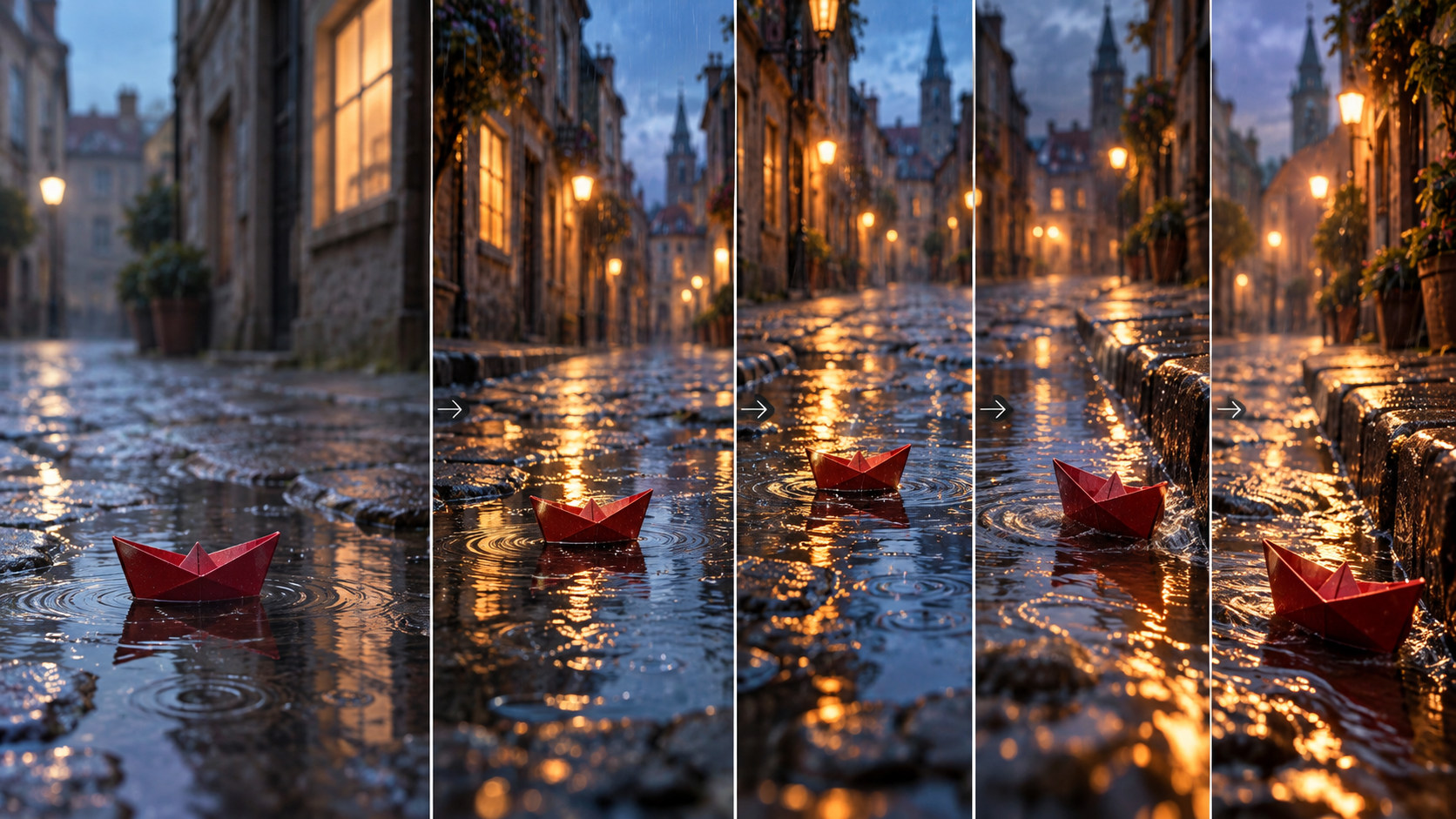
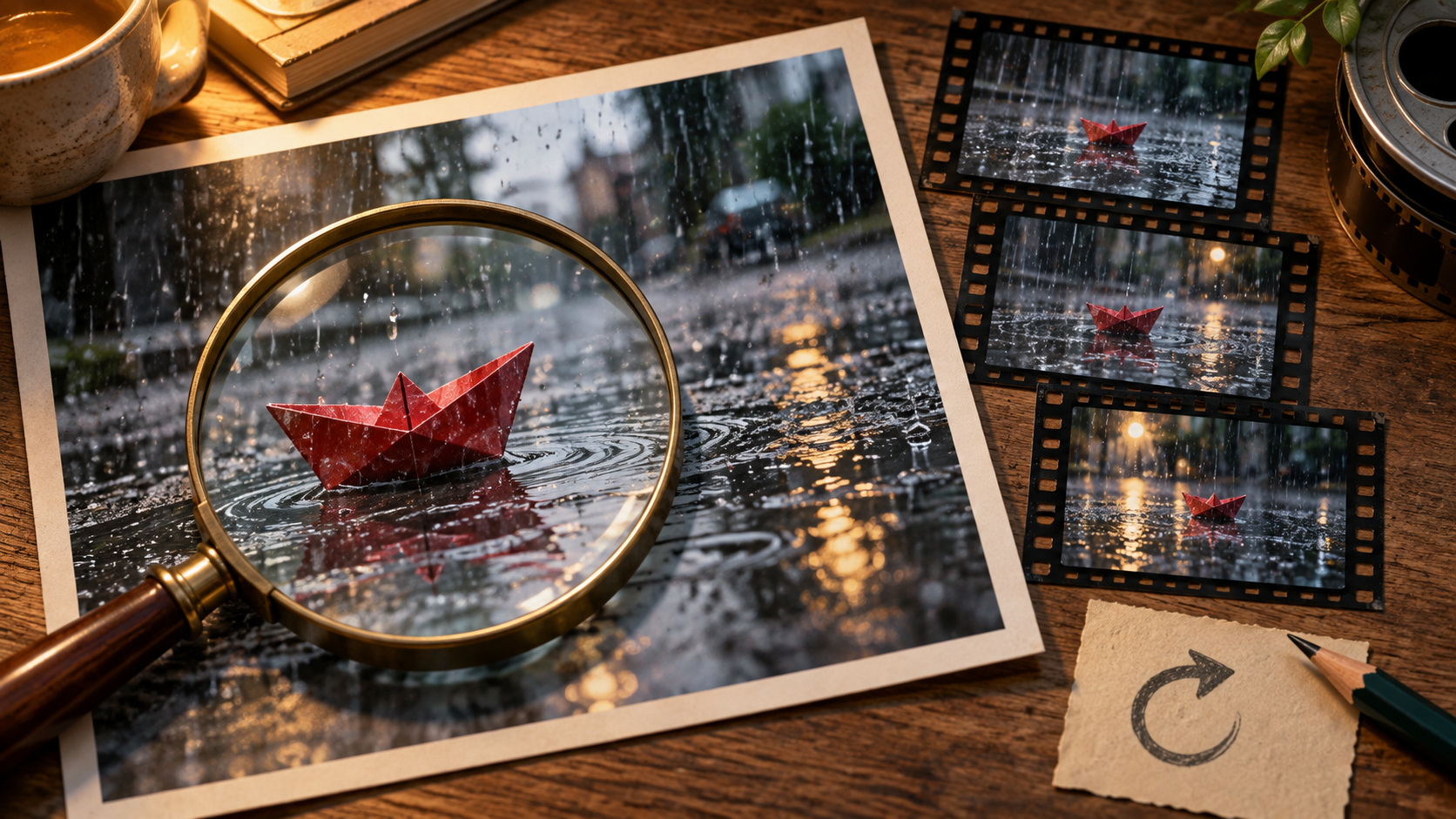
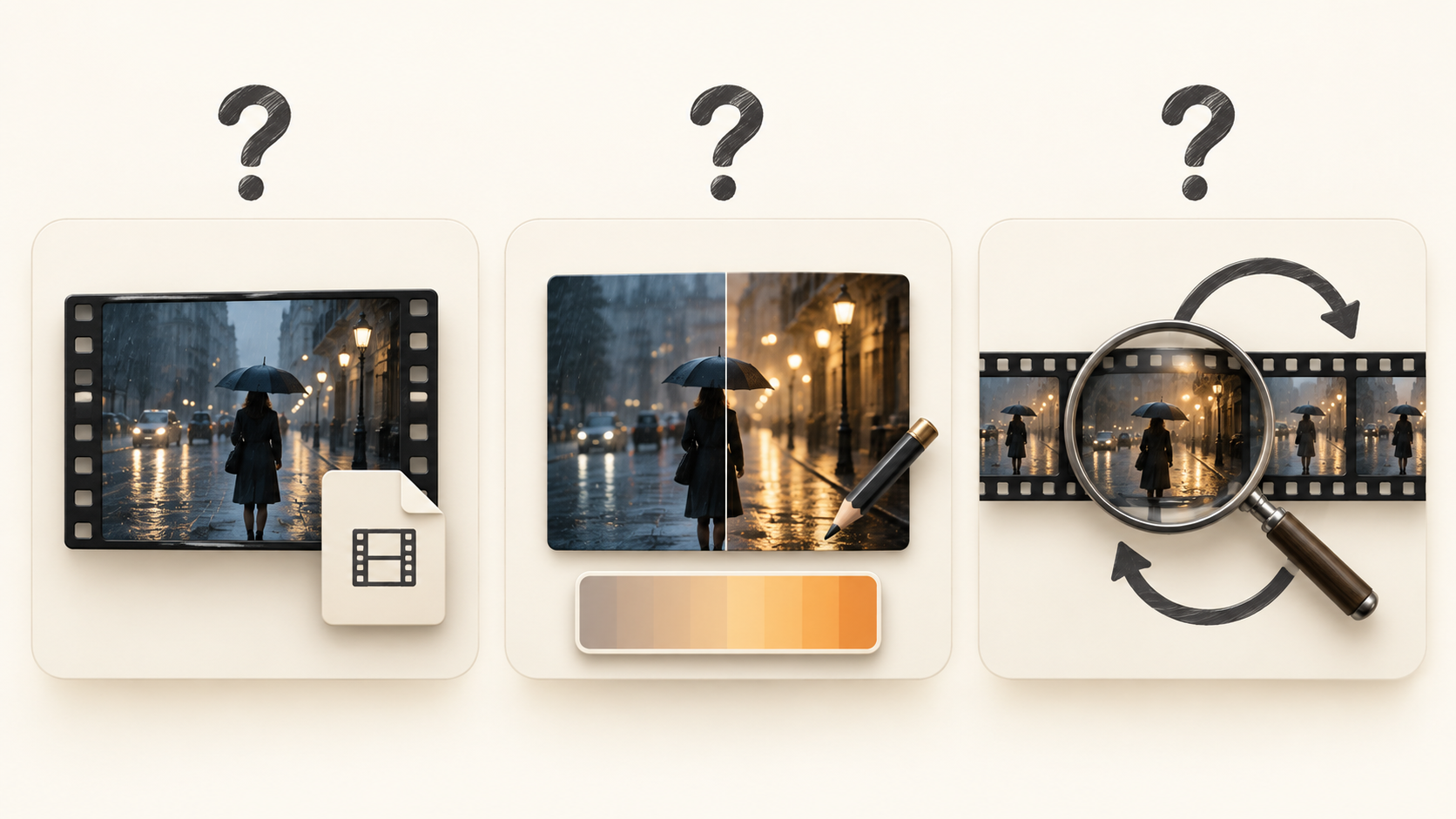
The editorial illustrations explain the tutorial method. They are not examples generated by Pitovee AI.
1. Decide what should change before you upload
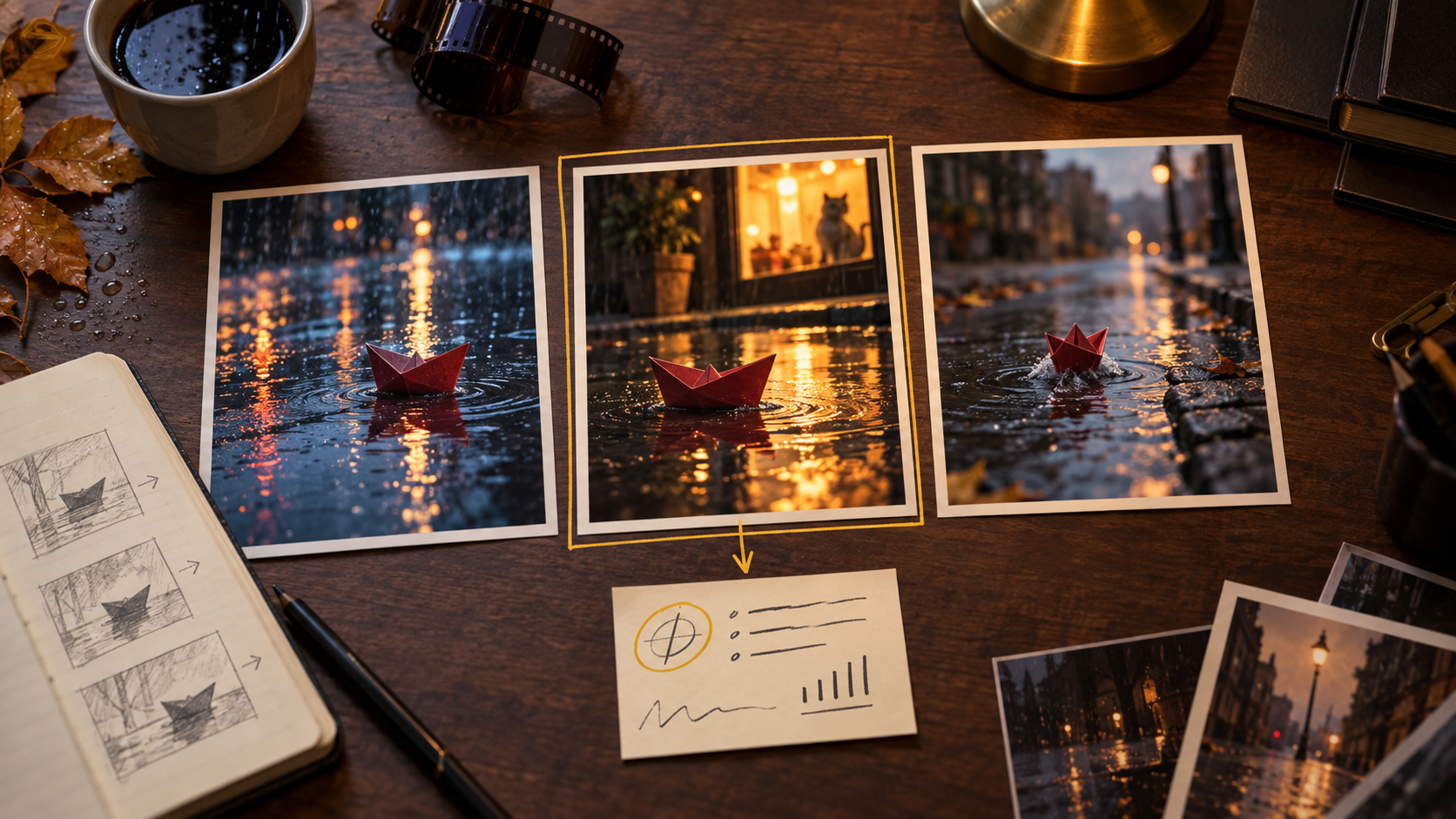
Good AI video editing starts with a narrow edit goal. Watch your source clip once without making notes, then watch it again with one question in mind: what is the single most useful change? For the paper-boat scene, you might choose warmer shop-window reflections, gentler rain, or a slightly more deliberate camera feeling.
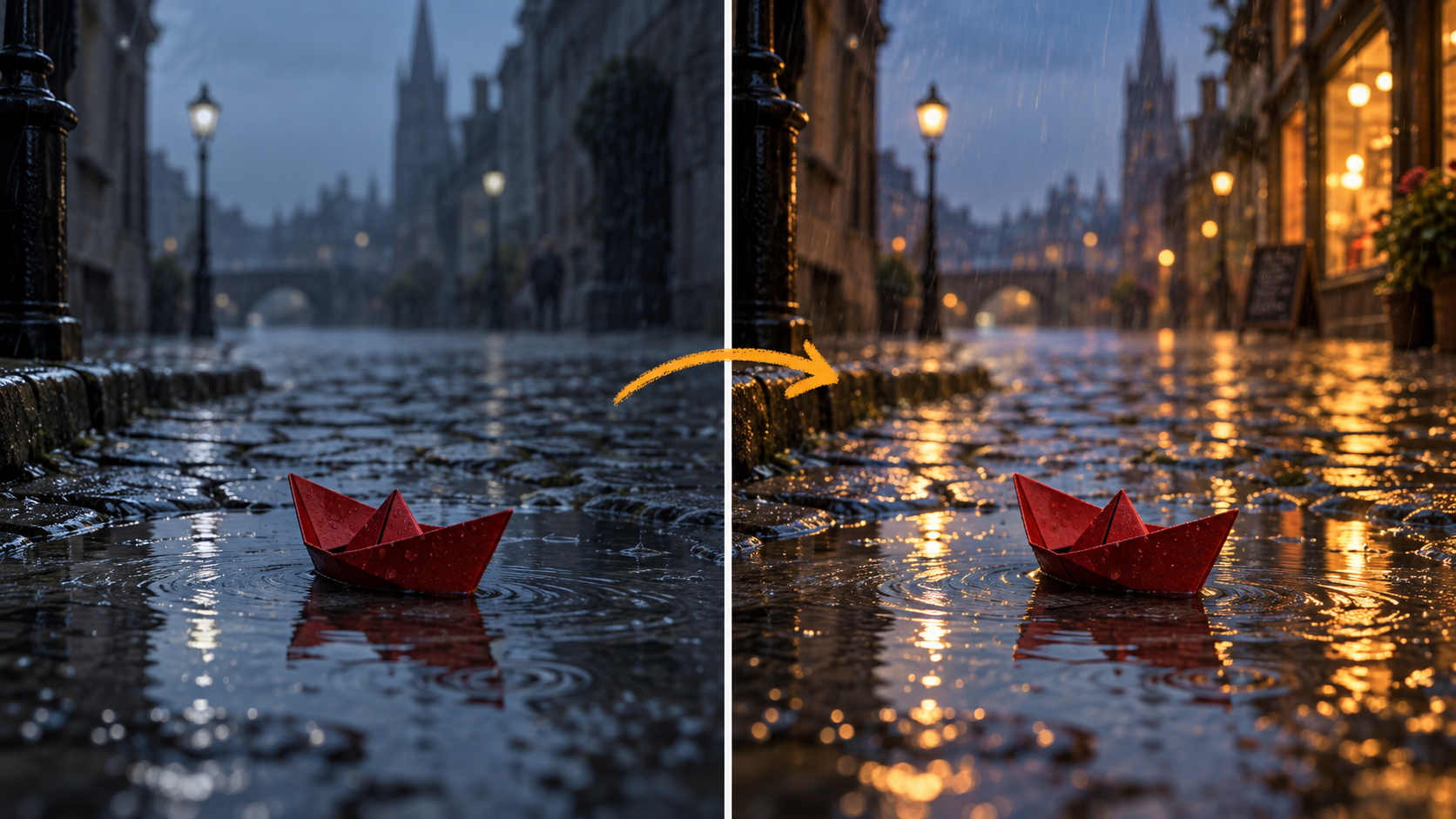
Write the goal in one sentence. For example: “Keep the red paper boat and cobbled street, but make the reflected lights warmer and the rain calm.” This tells you what to preserve and what to change.
Avoid combining a new location, new character, new weather, new camera angle, and new mood in the first attempt. A focused brief gives you a useful comparison when the edit arrives. It also makes a video-to-video AI workflow easier to judge.
2. Add the reference clip and write the edit prompt
Select Video editing, then use Choose file in the required reference area. Use a clip where the main subject is easy to recognize. In this example, the paper boat is separated from the background and remains visible for most of the shot.
Next, write a video editing prompt in the Pitovee AI video editor that protects the important parts before asking for a new treatment:
Keep the red paper boat floating in the rain puddle on the same cobbled street. Preserve the boat shape and camera perspective. Make the shop-window reflections softly warm, keep light rain falling, and maintain a quiet blue-hour mood. Gentle forward camera movement, no new objects.
Start with “keep” or “preserve” when a feature matters. Then describe the change using a few observable details. “Make it more cinematic” can mean many things; “warm amber reflections and gentle rain” gives the edit a more useful target.
3. Change one instruction at a time
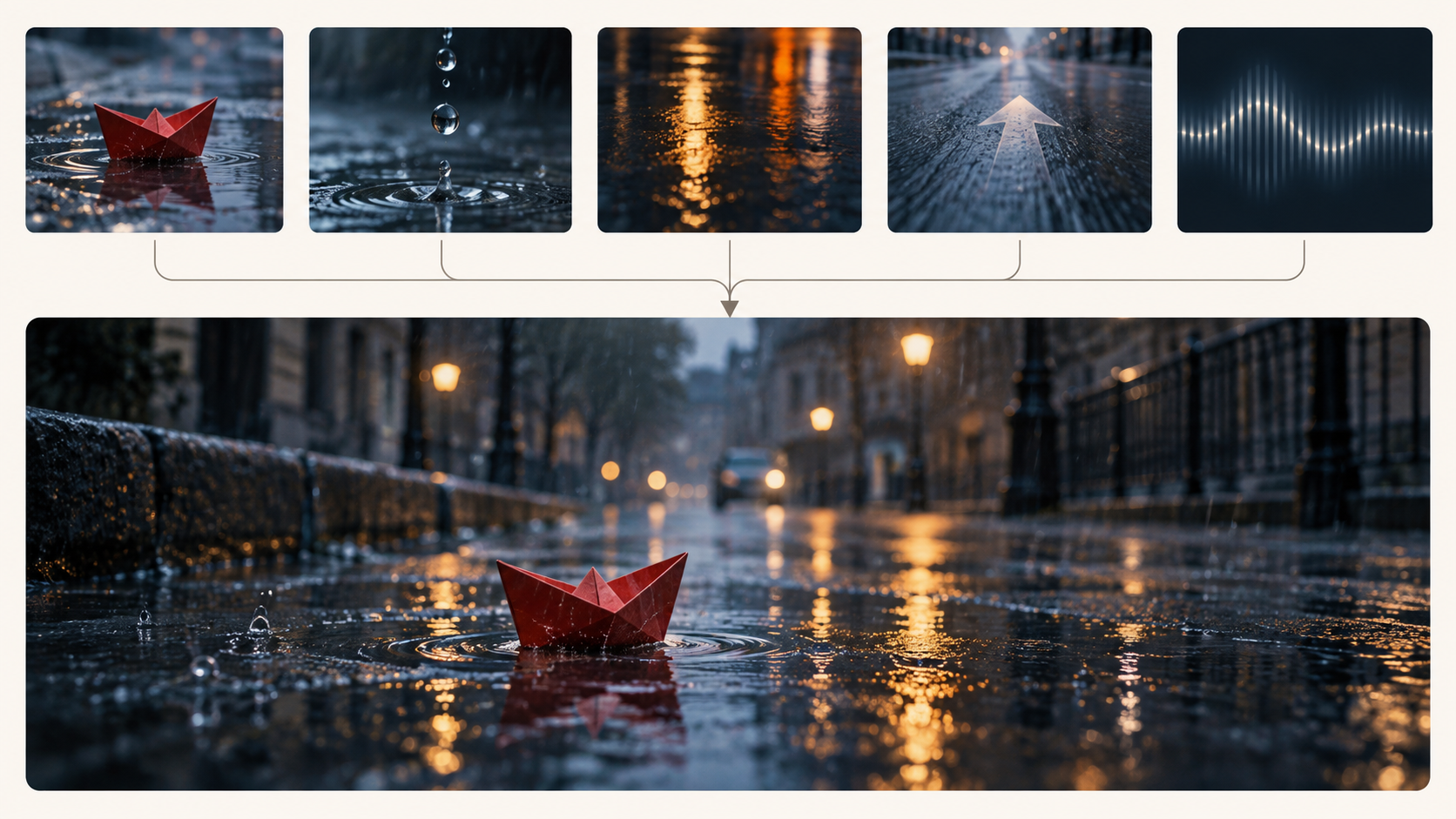
Treat the first result as evidence about your prompt. If the reflections are right but the rain is too heavy, revise only the rain instruction. For example, change “light rain falling” to “occasional fine raindrops with small ripples.” Keep the rest of the prompt and the reference clip the same.
This is the most useful habit in an AI video editing tutorial. It creates a clean comparison between versions. When several directions change at once, it becomes difficult to tell which phrase improved the scene or introduced a new problem.
Use the same principle for motion. If the camera movement distracts from the boat, try “fixed camera” or “very subtle forward movement.” Do not assume the selected model will follow every instruction perfectly; review each version against your edit goal.
4. Choose the settings that fit the clip
The Video editing interface shows controls for a model, audio generation, aspect ratio, resolution, watermark choice, and duration. Check the options available in your signed-in workspace before you generate. A model example, a 16:9 choice, and 480p are visible in the interface, but your selected combination may differ.
Match the aspect ratio to where the clip will appear. Keep a wide frame for a horizontal edit, or choose another available format only when the destination requires it. Consider whether audio is useful for this pass. If your goal is only to change the lighting, leaving audio off can make the review simpler.
Check the displayed creation cost, duration control, and watermark choice after selecting the available settings. Do not treat a cost or duration visible in one session as a universal rule for every model or edit.
5. Review the full edit and record what changed
When the result is available, watch it from beginning to end before deciding whether it worked. First, check the requested change: are the warm reflections present? Then check what you wanted to preserve: does the red boat still look consistent, and does the street remain believable?
On a second viewing, look for smaller issues such as a changing boat shape, uneven rain, jumpy motion, or light that shifts without a reason. Write down the exact moment you notice it. A note like “the reflection becomes too bright near the end” is much more useful than “make it better.”
Then make one revision. Preserve the successful instructions, edit the phrase connected to the problem, and compare the new version with the prior one. This careful loop turns AI video editing into a controlled creative process rather than a series of guesses.
AI video editing tutorial: common questions
Do I need a source video?
For Video editing, the visible workspace marks the reference file as required. Choose a clip with a clear main subject and a readable composition so you can evaluate what the edit changed.
Should I ask for many changes in one prompt?
Start with one main change. Add a second detail only when it supports the same goal, such as warm reflections and softer rain. Separate unrelated changes into later attempts.
Which settings should I choose first?
Choose the current model and settings that fit your clip’s destination, then check the displayed cost. Use a simple configuration for an early test so it is easier to compare revisions.
Conclusion: use one clear edit to learn faster
The point of an AI video editing tutorial is to build a reliable way of working. Begin with a recognizable reference clip, describe one meaningful adjustment, and compare each version carefully. Open Pitovee AI’s AI video editor and use the paper-boat example to test an edit that serves your own story.

Related articles
Create AI ASMR prompts for crystal fruit, soft textures, and impossible foods, with one action, camera, and audio directions you can refine after each attempt.
Halloween AI Video Prompts: Six Spooky Scenes to Create This OctoberExplore Halloween AI video prompts for haunted gardens, ghostly rooms, and quiet suspense, with camera directions and practical checks for each original scene.
AI Camera Movement Prompts: Control Pans, Orbits, and Dolly ZoomsWrite AI camera movement prompts that describe the shot clearly, distinguish pans from tracking, and help you test orbits, push-ins, and dolly zoom effects.