AI Video Generation Tutorial: Your First Clip with Pitovee AI
Follow this practical Pitovee AI tutorial to write video prompts, add reference images, choose settings, and refine a simple coffee scene into your first clip.
This AI video generation tutorial starts with something simple: a cup of coffee beside a sunny window. Your goal is to turn that scene into a short clip with rising steam and a gentle camera movement. That's enough to practice the process without planning an entire movie.
Open Pitovee AI's AI video generator, and follow along. You'll write a prompt, decide whether to add an image, choose the available settings, and review what needs improving.
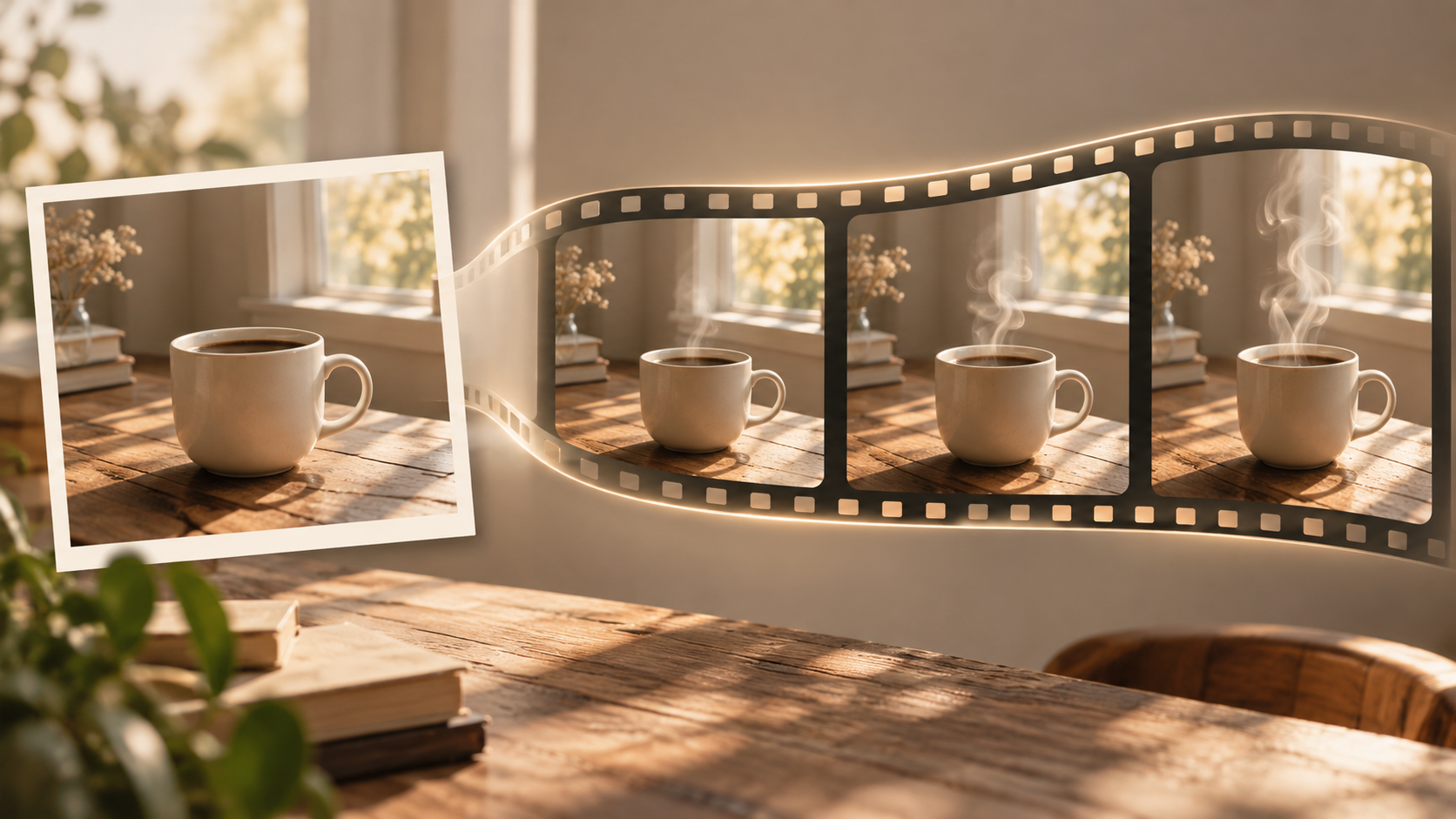
Illustrations explain the example concept; they are not samples generated by Pitovee AI.
1. Set up a simple AI video generation project
Start in the Video workspace and select Video generation. The interface also shows Video editing and Video extension, but this exercise begins with a new scene. If you're signed out, use Sign in to create and complete the account steps shown.
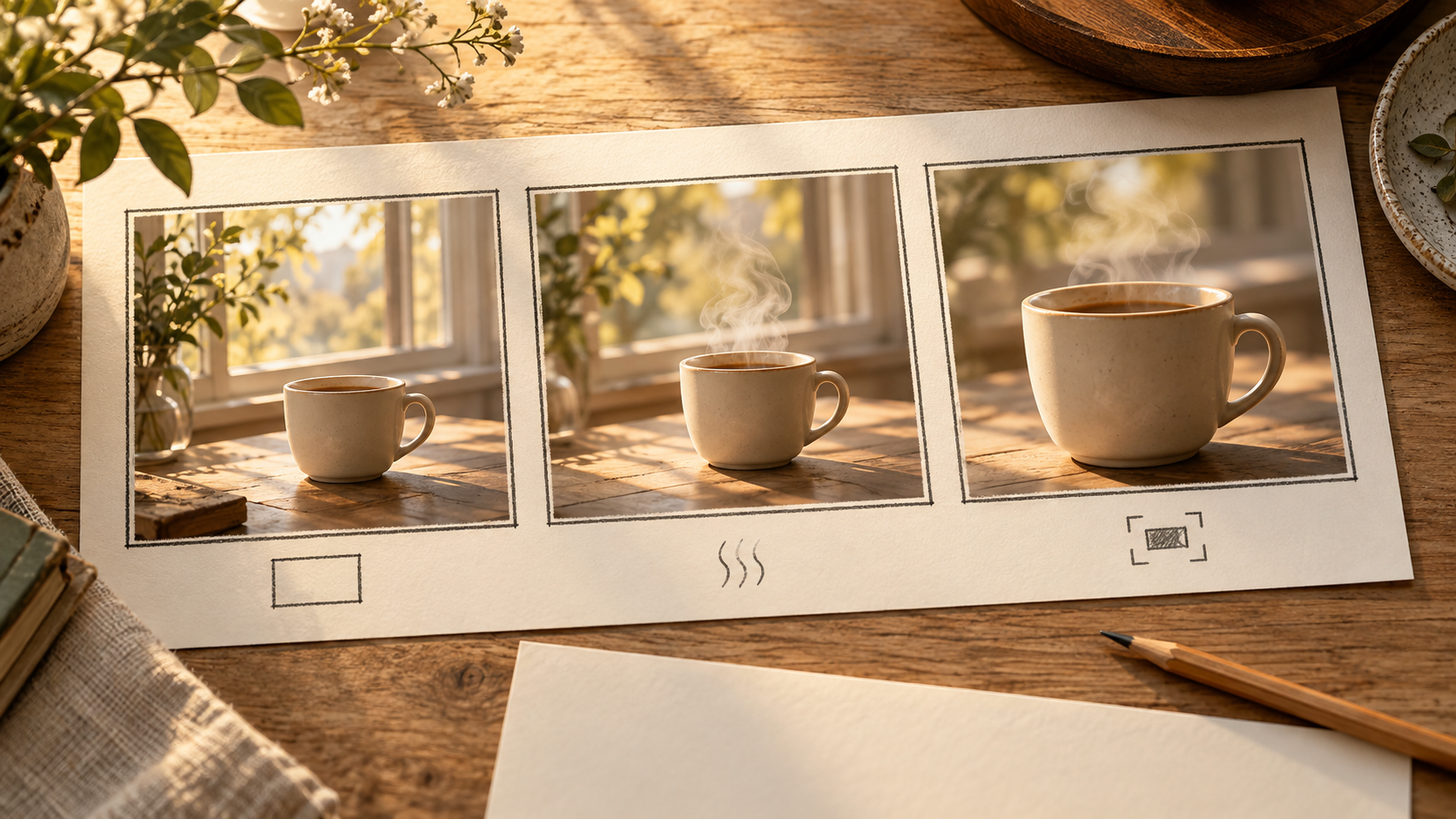
Before touching the settings, describe your intended shot in one sentence: “A coffee cup stays on a table while steam rises and the camera moves closer.”
Keep that sentence nearby. It gives you something concrete to compare against the result. A clip can look attractive while still missing your intended action.
For this first attempt, prepare a written prompt and, optionally, a clear photo of the cup. Decide where the finished clip will appear, too. A wide website banner and a vertical social post need different compositions.
2. Write a text-to-video prompt with clear movement
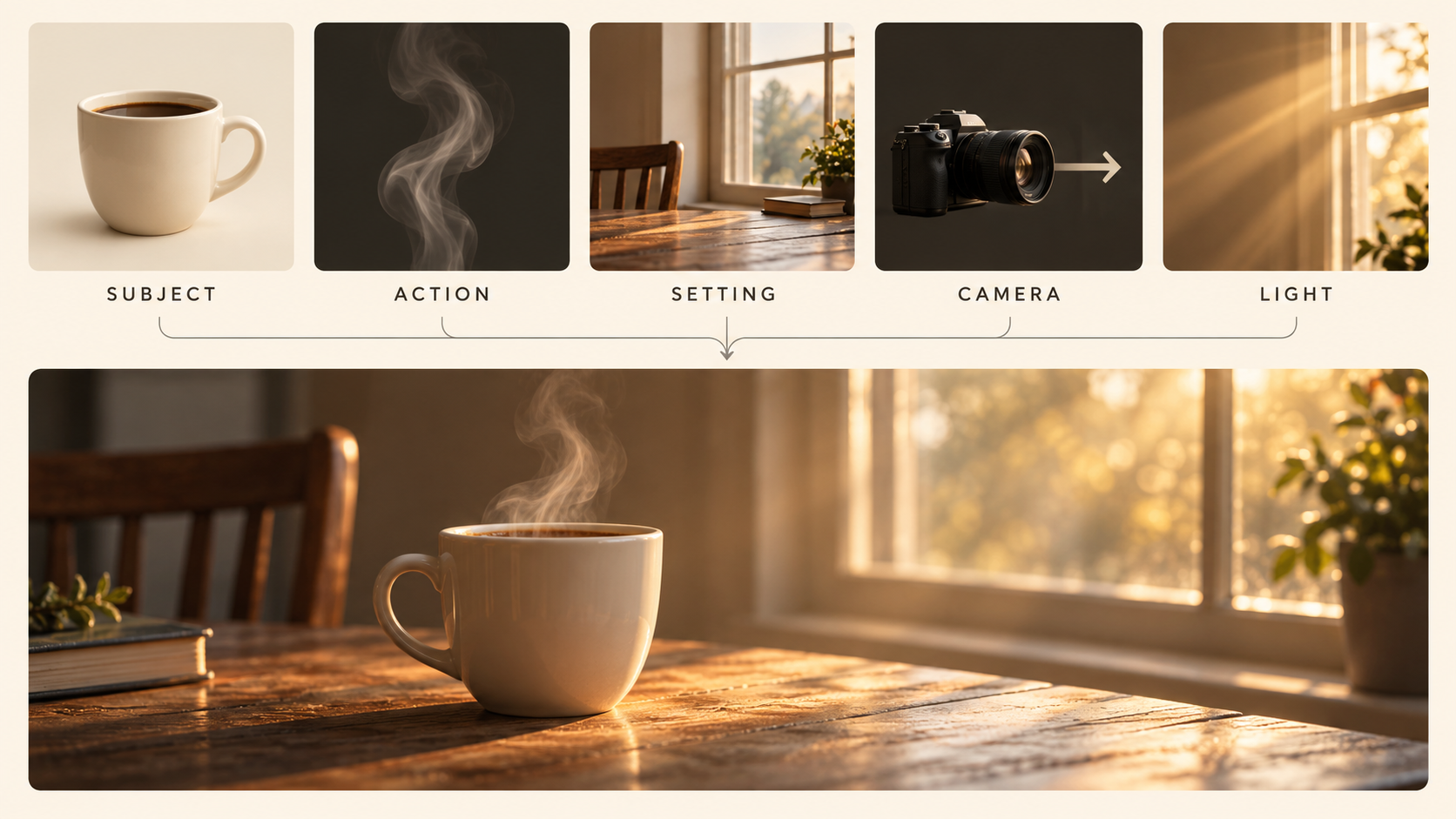
In the Creative prompt field, explain what the viewer should see. A useful starting formula is subject, action, setting, camera, and light.
Try this example in the text-to-video generator:
A cream ceramic coffee cup sits on a wooden table beside a window. Thin steam rises slowly from the coffee. The camera makes a gentle push toward the cup. Warm morning sunlight falls across the table. Realistic textures, a quiet mood, one continuous shot. The cup remains still.
Notice how each sentence adds a specific instruction. “Beautiful cinematic coffee video” leaves much more of the scene undecided.
Read your prompt once before submitting it. Remove conflicting directions, such as asking the camera to remain fixed and move closer simultaneously. Save dramatic scene changes for another experiment; this attempt should teach you how one shot behaves.
3. Add a reference image when appearance matters
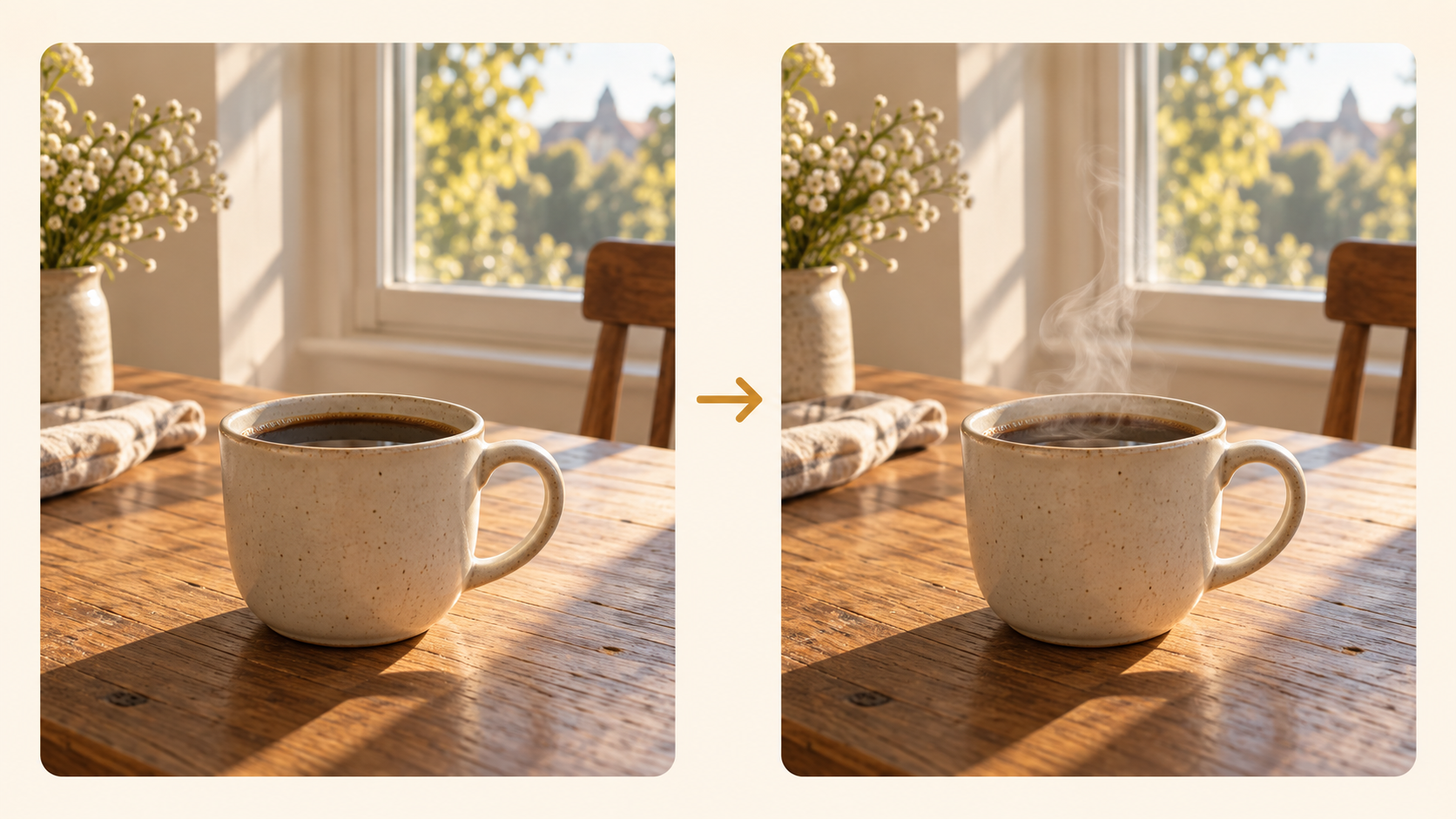
If you already have a photo you want to animate, use Choose file in the optional reference area. For this example, pick a sharp image with a clearly visible cup, enough space above it for steam, and an uncluttered background.
When using an AI image to video generator, let the image establish the composition. Focus your prompt on the change you want:
Keep the cup and table arrangement consistent. Let a thin stream of steam rise gently. Move the camera slightly closer while maintaining the warm window light.
This is a direction to try, not a guarantee that every detail will remain unchanged. Check the result carefully, especially if the cup has lettering or a distinctive handle.
If you don't have a suitable image, continue with the text prompt. You can explore the reference workflow afterward.
4. Choose the model, framing, and audio settings
Open the Model selector and inspect the choices currently available. The interface shows Doubao-Seedance-2.0 as one example. Treat the selection as a starting point for your experiment, then read the accompanying description and available controls.
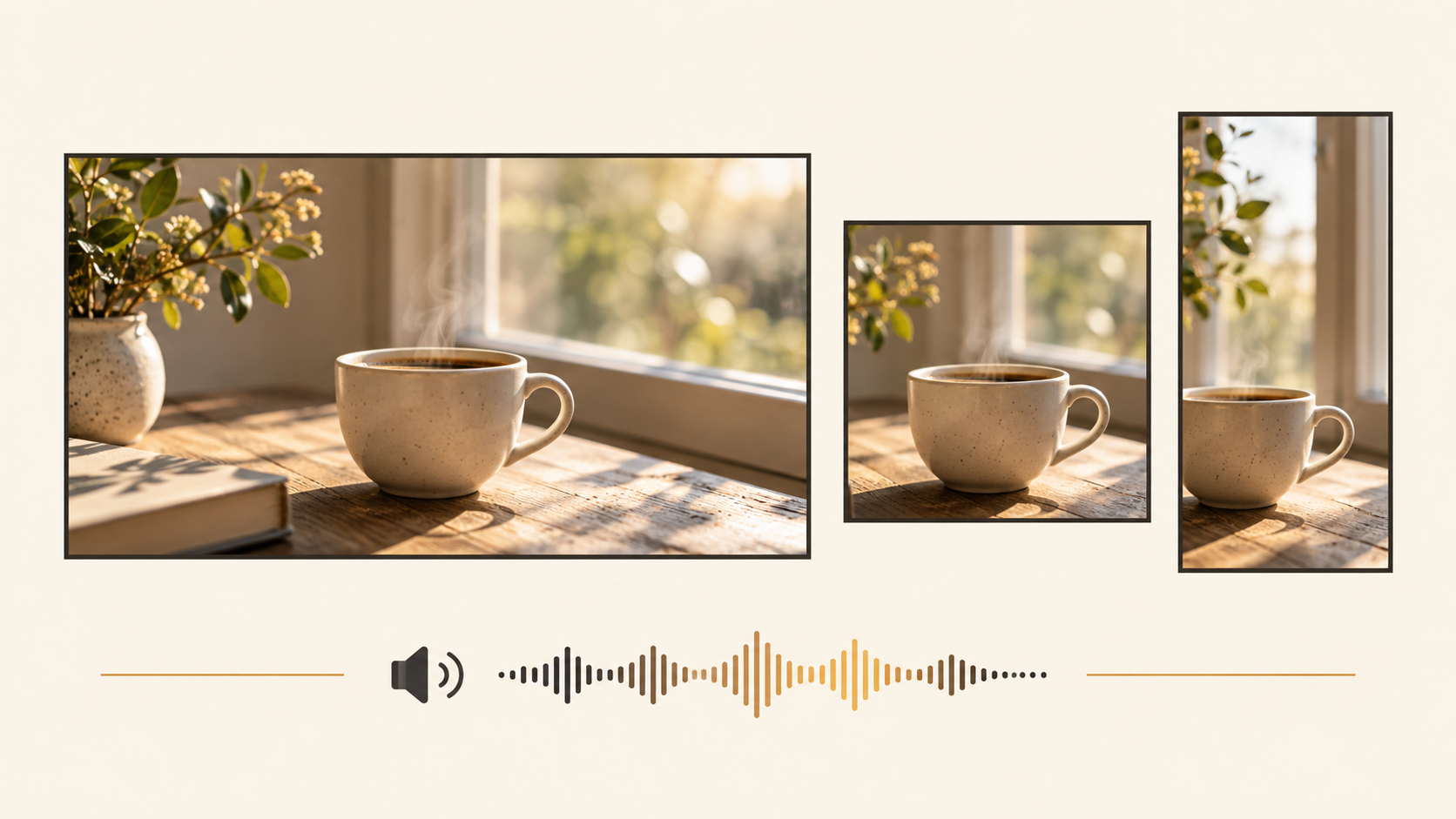
For the coffee scene, use 16:9 if you want a wide composition. If you need a tall format, check whether your selected model offers it before composing the shot.
The visible controls include resolution and Generate audio. Choose No for audio when your first test only needs movement. A 480p option is visible; decide whether that fits your draft, and inspect any other available choices.
Review the duration and watermark settings as displayed. Check the creation cost and your balance after choosing everything. Don't assume the same cost applies to every model or combination of settings.
5. Generate, review, and change one thing
Submit the generation request once you're signed in and ready. When the result is available, watch the whole clip before deciding what to change.
Ask three practical questions: Does the steam move as intended? Does the cup keep its shape? Does the camera movement suit the quiet scene?
Then watch again for smaller distractions, including a shifting handle, flickering light, or a background that changes unexpectedly. Keep a note of the prompt and settings beside your observations.
If the motion feels excessive, try “very subtle steam, fixed camera” next. Keep the other settings unchanged so the comparison is easier to understand. If the composition is wrong, revise the framing instruction or choose a clearer reference image.
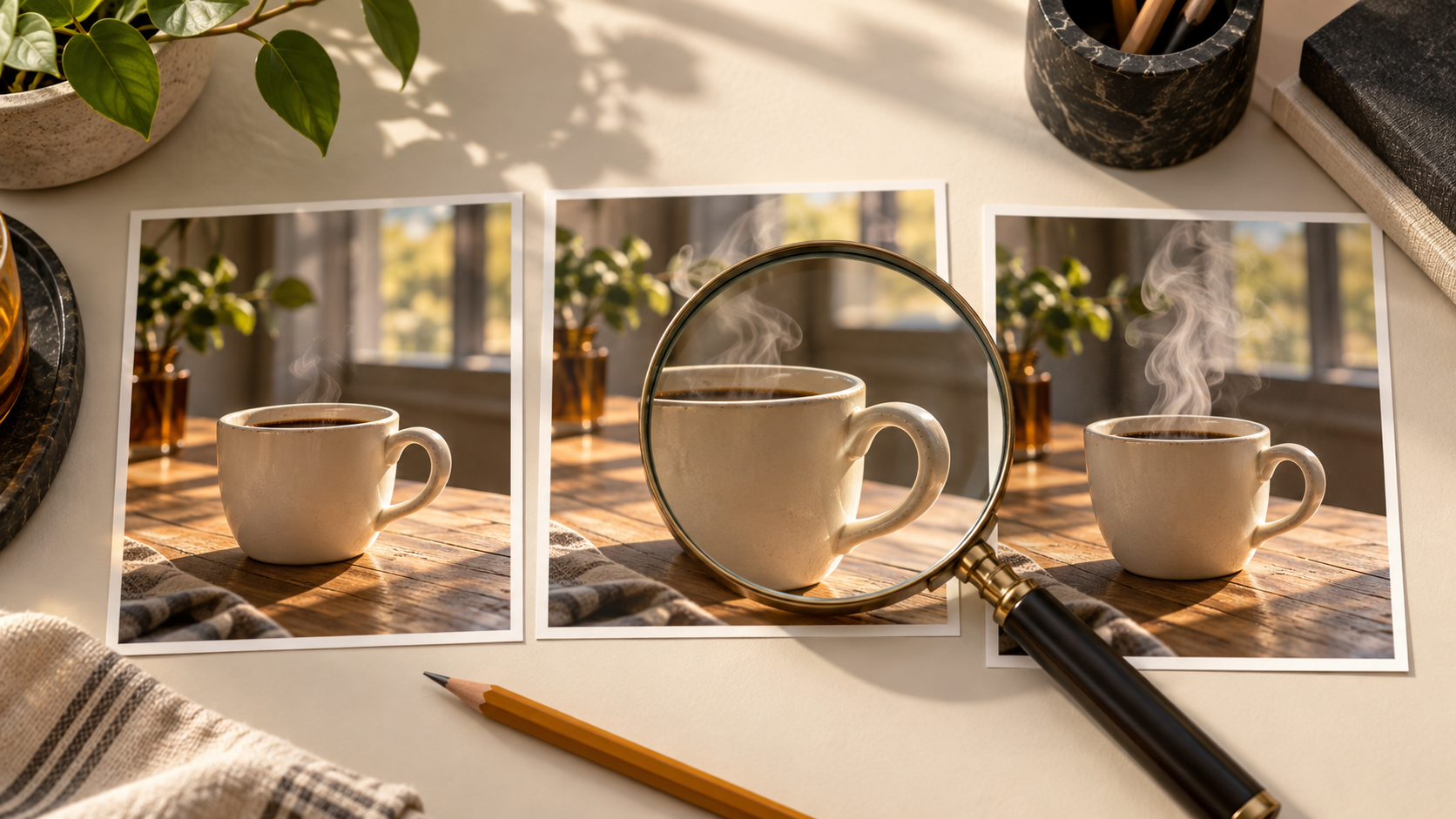
For a fair comparison, keep the original prompt and label each attempt with the single change you made. Compare the clips at the same moment, such as when the camera begins moving. That makes subtle differences easier to spot and discuss with collaborators.
Aim for one useful improvement per attempt. Once the simple shot works for your purpose, try a more ambitious scene.
AI video generation tutorial: common questions
Do I need an image to start?
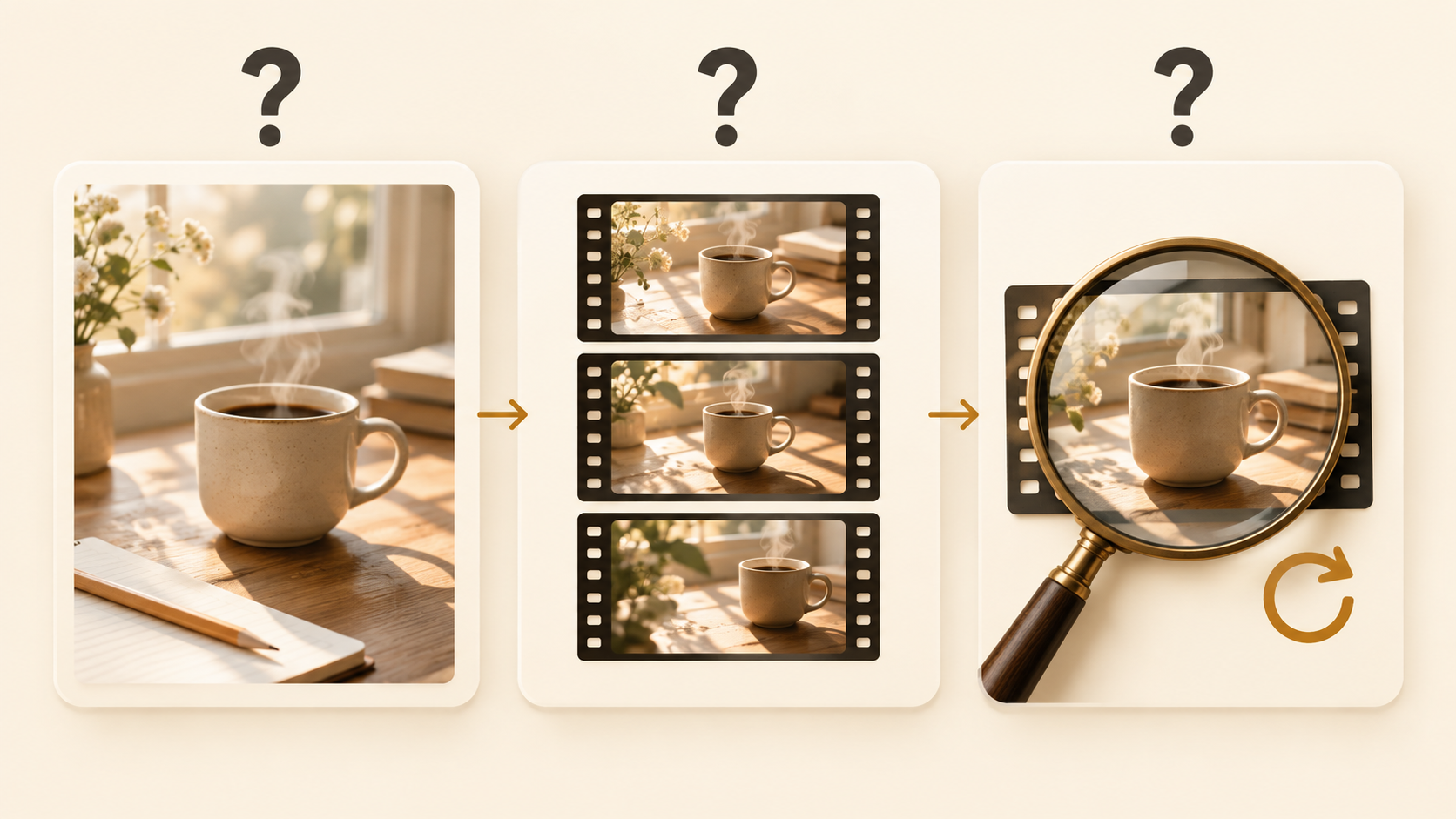
No. Pitovee AI describes creating scenes from text or reference images, and the reference area is optional. Start with a written scene if you don't have a suitable photo.
Which model should I choose first?
Inspect the available model descriptions, settings, and cost. Choose one that fits your intended input and format. Keep it consistent while you practice prompting.
Why doesn't the result follow every instruction?
A prompt expresses your intended result; it doesn't ensure an exact outcome. Simplify the scene, remove conflicting directions, and compare another attempt before changing everything.
Conclusion: make your first useful clip
Use this AI video generation tutorial to finish one manageable scene. Start with a clear subject, describe modest movement, and review the result against your original idea. Then open Pitovee AI's image-to-video AI generator and try the coffee example with your own creative twist.
Related articles
Create AI ASMR prompts for crystal fruit, soft textures, and impossible foods, with one action, camera, and audio directions you can refine after each attempt.
Halloween AI Video Prompts: Six Spooky Scenes to Create This OctoberExplore Halloween AI video prompts for haunted gardens, ghostly rooms, and quiet suspense, with camera directions and practical checks for each original scene.
AI Camera Movement Prompts: Control Pans, Orbits, and Dolly ZoomsWrite AI camera movement prompts that describe the shot clearly, distinguish pans from tracking, and help you test orbits, push-ins, and dolly zoom effects.