Fix AI Video Distortion: A Practical Guide to Flickering and Warping
Learn to fix AI video distortion by separating flickering, warping, and face changes, testing simpler motion, and deciding when to regenerate or edit the clip.

Quick Summary
To fix AI video distortion, identify what changes incorrectly before revising the scene. This guide separates flickering, object warping, and facial changes, then shows how to run a controlled retry and decide whether editing or regeneration is appropriate.
Why Distortion Needs a Specific Diagnosis
Different visible problems need different review decisions. A brightness pulse is not the same as a bending cup handle, and a shifting face carries a different consequence from an unstable background texture.
Use three working categories:
- AI video flickering: brightness or details change repeatedly between frames.
- AI video warping: an object loses its expected shape or proportions.
- AI face distortion: facial structure or recognizable identity changes during the action.
These categories describe what you see; they do not establish the technical cause. Avoid assuming that every problem comes from the same prompt mistake.
Write one precise observation. “The handle changes size when the camera passes it” gives the next attempt a clearer purpose than “the video looks wrong.”
Key Takeaways
- Inspect the moment where the error begins.
- Check the source image for missing or unclear information.
- Reduce the relevant action before adding complexity.
- Keep unrelated settings stable during the comparison.
- Regenerate when the important structure remains unusable.
Prepare the Reference and Failed Clip
Keep the source image, failed output, prompt, and available generation settings together. You also need a way to pause the clip and compare frames.
Look at the reference before changing the prompt. Are edges blurred? Is a face partly hidden? Does a strong reflection obscure the product's shape? Does the requested movement reveal surfaces absent from the image?
Choose a clearer reference when it addresses the problem. If you change both the source and the prompt, record both so the later comparison remains understandable.
Review the clip at normal speed once, then inspect the failure point. This keeps frame-by-frame scrutiny connected to what viewers actually experience.
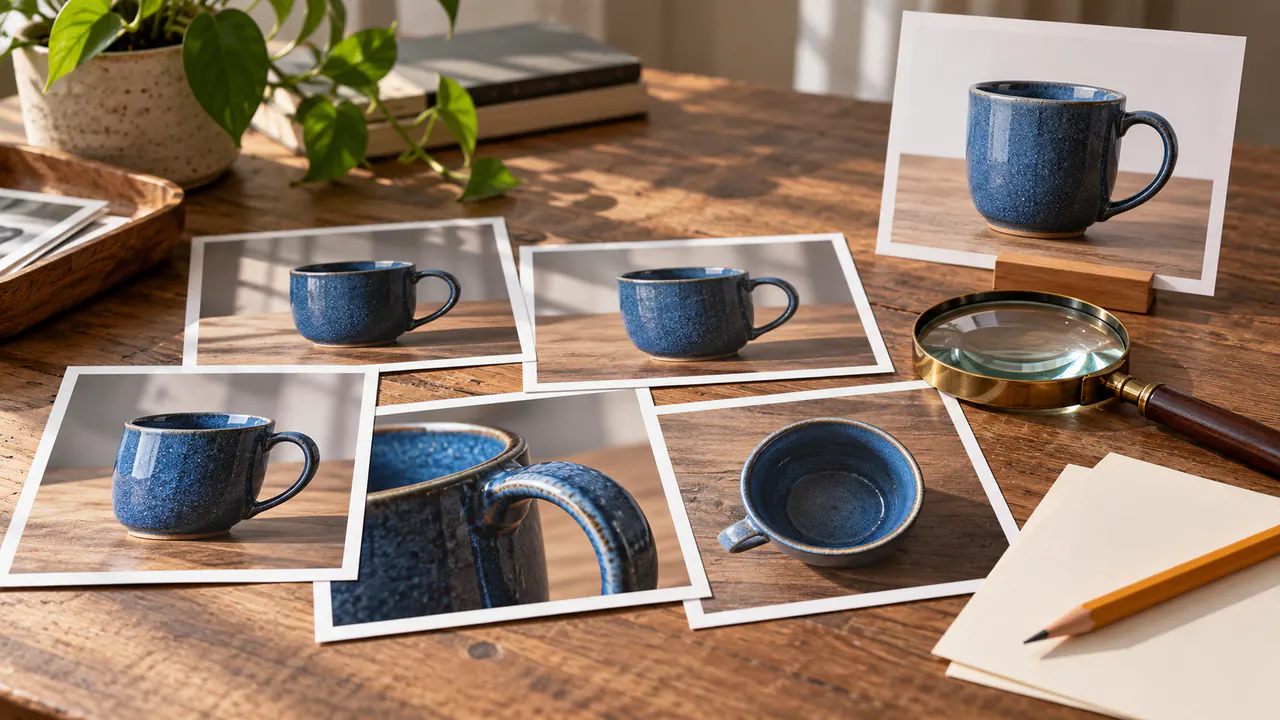
Fix AI Video Distortion in Four Steps
1. Find the first visible mismatch
Compare a frame before the problem with the first frame where it appears. Identify the affected object and the action occurring at that moment.
For a portrait, inspect the turn or occlusion. For a product, check when a reflection or camera angle changes. Record a concrete observation rather than a broad quality judgment.
2. Reduce the relevant movement
If the object bends during a large orbit, try a shorter camera move or fixed view. If a face changes during a dramatic turn, try a smaller turn.
Runway's Gen-4 documentation recommends simple starting instructions and incremental additions. Its positive-phrasing advice is specifically scoped to that model's workflow, so consult the guidance for the model you use. Runway Gen-4 prompting guide
A proposed simplified scene:
The ceramic cup stays upright on the table. A thin stream of steam rises gently from the drink. The camera remains fixed at the original angle, with the handle clearly visible throughout one continuous shot.
This prompt is an untested starting point, not a guaranteed correction.
3. Run a controlled retry
Open Pitovee's video workspace and inspect the selected model's current controls. Keep unrelated choices stable where the interface permits it.
Change the instruction connected to the suspected issue. A controlled comparison helps you understand whether the reduced movement produced a more usable candidate.
If the model exposes a setting you do not understand, check its documentation rather than assigning it a guessed effect.
4. Review against the same criteria
Inspect the same object, action, and point in the sequence. Did the handle retain its shape? Did the face remain recognizable during the turn?
If the simple version is coherent, introduce a small camera movement next. Save both versions and note the actual difference.
If the problem remains, reconsider the reference or scene design before expanding the prompt.
Choose Between Editing and Regeneration
Editing may help when the defect is brief or outside the essential action. A trim can remove an unstable opening; a crop can exclude an edge artifact if the composition still works.
A mild brightness variation may be worth testing in a color-adjustment workflow. Inspect the result rather than assuming the adjustment is sufficient.
Structural errors need a stricter decision. Sharpening or upscaling should not be treated as a reliable way to reconstruct a changed face, broken hand, or deformed product.
Ask whether the edit preserves the scene's purpose. If removing the problem also removes the necessary action, regenerate or replace the shot.
Keep a Troubleshooting Log
Record the reference, prompt, selected model, available settings, and observed failure. Use your own results to identify repeated patterns.
If a particular action fails through several controlled attempts, redesign it. A simpler view may communicate the same idea. If the requirement remains essential, evaluate another suitable workflow.
Choose a stopping point appropriate to the project. A decorative transition and a central character close-up may justify different amounts of production effort.
FAQ
Can every distorted clip be repaired?
No. Important structural changes may require regeneration or a replacement scene.
Does a longer prompt prevent warping?
Not necessarily. More instructions can add complexity. Focus on the action connected to the visible failure.
Should I change several settings at once?
For troubleshooting, limited changes make the comparison easier to interpret.
Conclusion
To fix AI video distortion, describe the visible failure, simplify the relevant action, and review the next candidate against the same criteria. Use editing when it preserves a coherent scene, and regenerate when the important structure remains wrong. A repeatable diagnosis helps you make that choice deliberately.
Related articles
Create AI ASMR prompts for crystal fruit, soft textures, and impossible foods, with one action, camera, and audio directions you can refine after each attempt.
Halloween AI Video Prompts: Six Spooky Scenes to Create This OctoberExplore Halloween AI video prompts for haunted gardens, ghostly rooms, and quiet suspense, with camera directions and practical checks for each original scene.
AI Camera Movement Prompts: Control Pans, Orbits, and Dolly ZoomsWrite AI camera movement prompts that describe the shot clearly, distinguish pans from tracking, and help you test orbits, push-ins, and dolly zoom effects.